Installation and Usage Guide

Overview

This guide will help you set up and use Datus Agent from scratch to connect to Singdata Lakehouse, enabling natural language queries and intelligent data analysis. Through step-by-step configuration, you will be able to:

  • Establish a connection between Datus and Singdata Lakehouse
  • Configure support for multiple AI models
  • Enable MCP tool integration (optional)
  • Start querying and analyzing data using natural language

Requirements

  • Python Version: 3.12 or higher
  • Datus: 0.2.23 or higher
  • Operating System: macOS, Linux, or Windows
  • Singdata Lakehouse Access: Including service endpoint, user credentials, etc.
  • Network Requirements: Ability to access Singdata Lakehouse API endpoints

Step 1: Create Project Directory

Create project directory:

mkdir my-lakehouse-datus cd my-lakehouse-datus

Step 2: Create Python Virtual Environment

Choose one of the following three methods to create a virtual environment:

Method 1: Using conda (Recommended)

conda create -n lakehouse-env python=3.12 conda activate lakehouse-env

Method 2: Using virtualenv

python3.12 -m venv lakehouse-env source lakehouse-env/bin/activate # Linux/macOS

Or:

lakehouse-env\Scripts\activate # Windows

Method 3: Using uv (Modern Tool)

uv venv --python 3.12 lakehouse-env source lakehouse-env/bin/activate # Linux/macOS

Step 3: Install Datus Agent Package

Install Datus Agent:

pip install datus-agent

Datus plugin for Singdata Lakehouse:

pip install datus-clickzetta

If you need the latest development version of Datus Agent:

pip install git+https://github.com/Datus-ai/Datus-agent.git

Step 4: Configure Environment Variables

Create a .env file to store sensitive information:

Create environment variable configuration file:

touch .env

Add the following configuration to the .env file (modify according to your actual situation):

Singdata Lakehouse connection configuration:

CLICKZETTA_SERVICE=cn-shanghai-alicloud.api.singdata.com CLICKZETTA_USERNAME=your_username CLICKZETTA_PASSWORD=your_password CLICKZETTA_INSTANCE=your_instance_id CLICKZETTA_WORKSPACE=quick_start CLICKZETTA_SCHEMA=mcp_demo CLICKZETTA_VCLUSTER=default_ap

AI model configuration (choose one):

Alibaba Cloud Tongyi Qianwen (Recommended):

DASHSCOPE_API_KEY=your_dashscope_api_key

Or DeepSeek:

DEEPSEEK_API_KEY=your_deepseek_api_key

Or OpenAI:

OPENAI_API_KEY=your_openai_api_key

Or Claude:

ANTHROPIC_API_KEY=your_claude_api_key

Step 5: Configure Datus Agent

Create the configuration directory and agent.yml configuration file:

mkdir -p conf touch conf/agent.yml

Copy the following content into the conf/agent.yml file:

agent: target: qwen_main # Use Tongyi Qianwen as the primary model home: .datus # Model configuration models: qwen_main: type: qwen vendor: aliyun base_url: https://dashscope.aliyuncs.com/compatible-mode/v1 api_key: ${DASHSCOPE_API_KEY} model: qwen-plus enable_thinking: false qwen_reasoning: type: qwen vendor: aliyun base_url: https://dashscope.aliyuncs.com/compatible-mode/v1 api_key: ${DASHSCOPE_API_KEY} model: qwen3-max enable_thinking: true # Alternative model configuration deepseek_chat: type: deepseek vendor: deepseek base_url: https://api.deepseek.com api_key: ${DEEPSEEK_API_KEY} model: deepseek-chat # Intelligent node configuration agentic_nodes: lakehouse_assistant: node_type: gensql model: qwen_main system_prompt: gen_sql prompt_version: '1.0' prompt_language: zh # Supports Chinese max_turns: 15 tools: db_tools.*, context_search_tools.* agent_description: Singdata Lakehouse intelligent assistant, supports natural language queries and data analysis rules: - Prioritize responding to users in Chinese - Explain SQL query logic in detail - Provide executable SQL statements - Focus on data objects within the Singdata Lakehouse environment # Database connection configuration namespace: lakehouse: type: clickzetta service: ${CLICKZETTA_SERVICE} username: ${CLICKZETTA_USERNAME} password: ${CLICKZETTA_PASSWORD} instance: ${CLICKZETTA_INSTANCE} workspace: ${CLICKZETTA_WORKSPACE} schema: ${CLICKZETTA_SCHEMA} vcluster: ${CLICKZETTA_VCLUSTER} secure: false # Storage configuration storage: embedding_device_type: cpu document: registry_name: sentence-transformers model_name: all-MiniLM-L6-v2 # Lightweight embedding model dim_size: 384 batch_size: 64 # Workflow configuration workflow: plan: reflection chat_default_node: lakehouse_assistant

Schema linking rate (affects query performance):

schema_linking_rate: medium

Step 6: Test Connection

Before starting the full system, test the database connection:

Load environment variables:

load_dotenv()

Create database configuration:

db_config = DbConfig( type='clickzetta', service=os.getenv('CLICKZETTA_SERVICE'), username=os.getenv('CLICKZETTA_USERNAME'), password=os.getenv('CLICKZETTA_PASSWORD'), instance=os.getenv('CLICKZETTA_INSTANCE'), workspace=os.getenv('CLICKZETTA_WORKSPACE'), schema=os.getenv('CLICKZETTA_SCHEMA'), vcluster=os.getenv('CLICKZETTA_VCLUSTER') )

Test connection:

namespaces = {'lakehouse': {'lakehouse': db_config}} db_manager = DBManager(namespaces) try: connector = db_manager.get_conn('lakehouse', 'lakehouse') result = connector.test_connection() print('✅ Singdata Lakehouse connection test successful!') print(f'Connection result: {result}') except Exception as e: print(f'❌ Connection test failed: {e}') "

Step 7: Start Datus

Method 1: Command Line Mode

Start interactive CLI:

datus-cli --namespace lakehouse --config conf/agent.yml

Method 2: Web Mode (Recommended, supports subagent selection)

Start Web interface, supports selecting different subagents:

datus-cli --namespace lakehouse --config conf/agent.yml --web --host 0.0.0.0

Or local access only:

datus-cli --namespace lakehouse --config conf/agent.yml --web --host 127.0.0.1

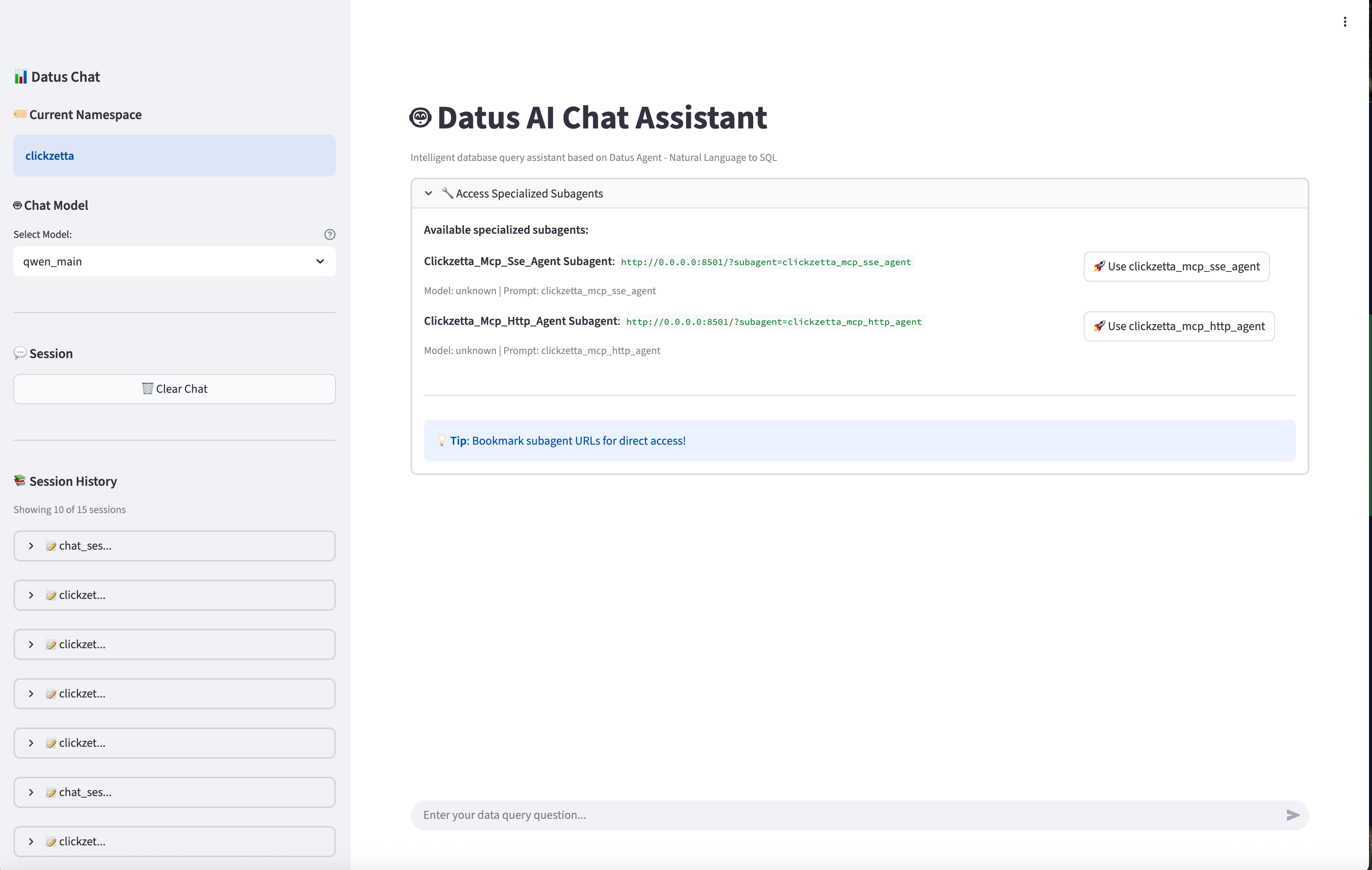
After Web Mode Starts:

  • Default access address: http://localhost:8501 or http://0.0.0.0:8501
  • In the Web interface, you can select previously created subagents for conversation
  • Supports a more intuitive interactive interface

Interface After Successful Startup:

CLI Mode:

Initializing AI capabilities in background... Datus - AI-powered SQL command-line interface Type '.help' for a list of commands or '.exit' to quit. Namespace lakehouse selected Connected to lakehouse using database quick_start Context: Current: database: quick_start Type SQL statements or use ! @ . commands to interact. Datus>

Web Mode:

  • The terminal displays server startup information and access address
  • Open the corresponding address in a browser to see the Web interface
  • The left side of the Web interface displays a list of selectable subagents
  • Click to select a subagent and start a conversation

Step 8: Start Using (Command Line Mode)
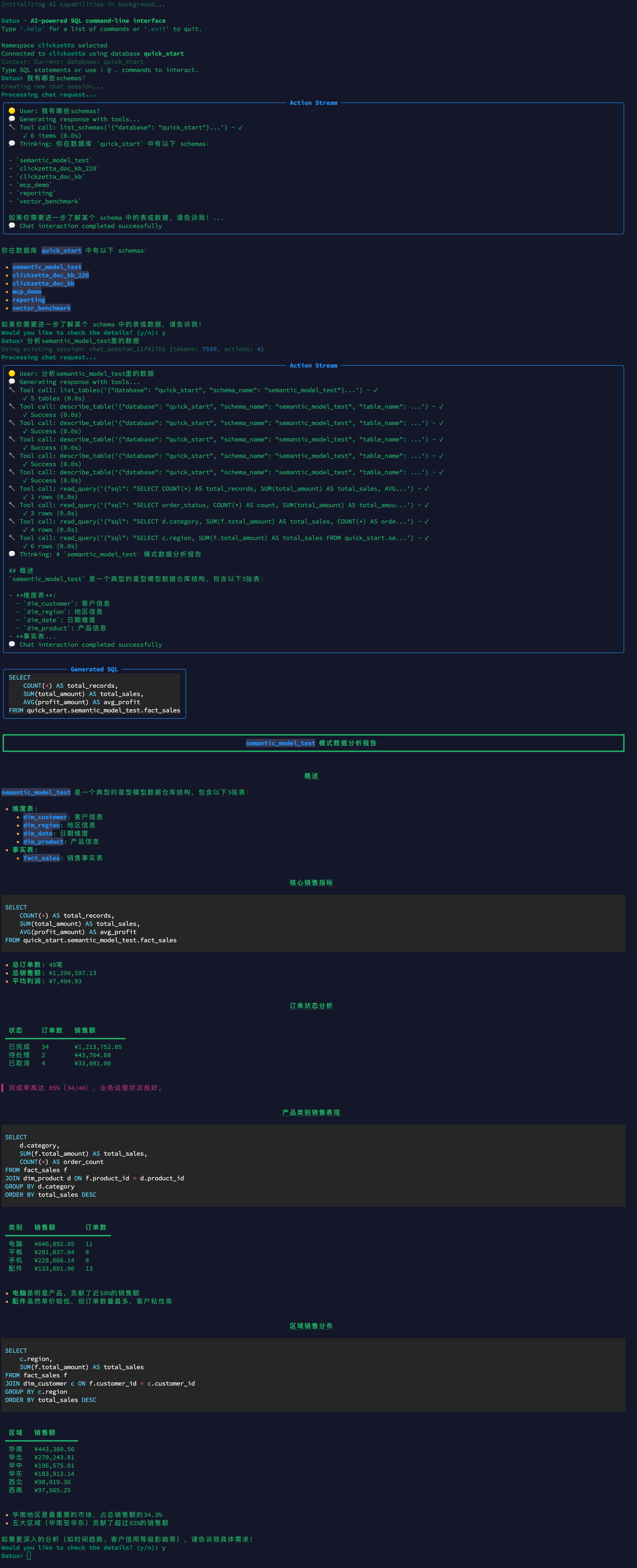
View Available Tables

Datus> .tables

Query Using Natural Language

Datus> / Show statistics for all user tables

Execute SQL Queries

Datus> SELECT * FROM your_table LIMIT 10;

Get Help

Datus> .help

Web Mode

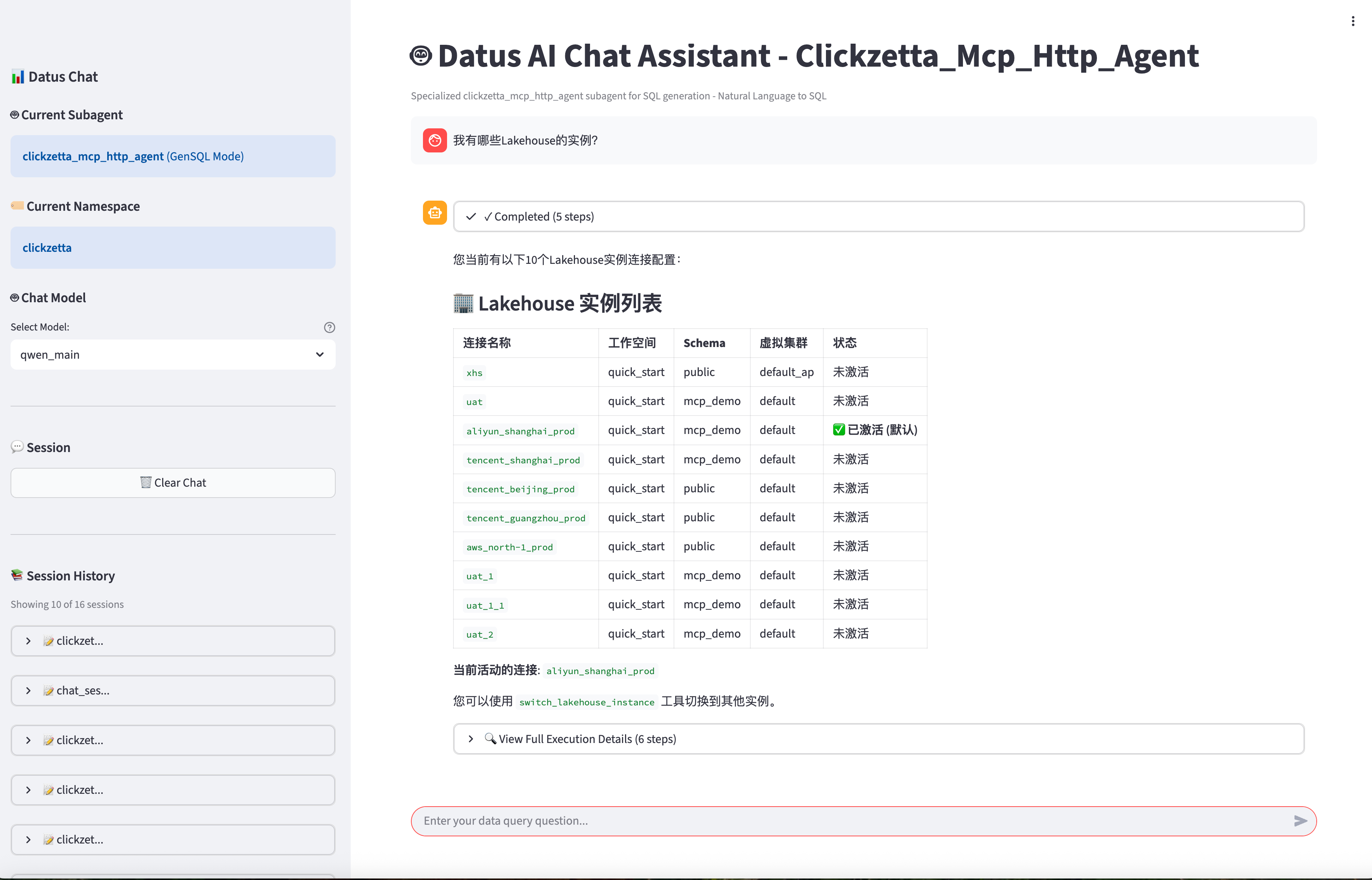
The Web mode startup page is shown above. If you added a SubAgent in command line mode, it will be displayed on the home page. Entering chat content directly runs in Agent mode (MCP Tools will not be called). Selecting a specific SubAgent enables SubAgent mode for conversation, which will call MCP Tools.
Multi-Model Configuration

Use different models for different tasks:

agentic_nodes: quick_query: model: qwen_main # Use basic model for quick queries # ... Other configuration complex_analysis: model: qwen_reasoning # Use reasoning model for complex analysis enable_thinking: true # ... Other configuration

FAQ

Q: Failed to connect to Singdata Lakehouse

A: Please check:

  1. Whether the network connection is normal
  2. Whether the credentials in the .env file are correct
  3. Whether the Singdata Lakehouse service is accessible
  4. Whether parameters such as instance ID and workspace are correct

Q: AI model response is slow

A: You can try:

  1. Switching to a faster model (e.g., qwen-plus -> qwen-turbo)
  2. Reducing parameters such as max_context_length
  3. Enabling GPU acceleration (if available)

Q: Query results are inaccurate

A: Suggestions:

  1. Increase schema_linking_rate to slow for more precise schema matching
  2. Provide more context information in queries
  3. Use .schema tablename to view the table structure before querying

Q: How to switch to a different database instance

A:

  1. Modify the CLICKZETTA_* variables in the .env file
  2. Restart datus-cli
  3. Or add multiple namespace configurations in the config

This guide was last updated: November 2025