Lakehouse Geospatial Function Deployment and Usage Guide
Overview
This document provides detailed instructions on how to deploy and use Esri geospatial functions in Singdata Lakehouse for storing, querying, and analyzing spatial data. Through this guide, you will learn how to:
Deploy the JAR packages required for geospatial functions
Create external function connections
Batch-create commonly used geospatial functions
Use these functions in real-world scenarios, such as:
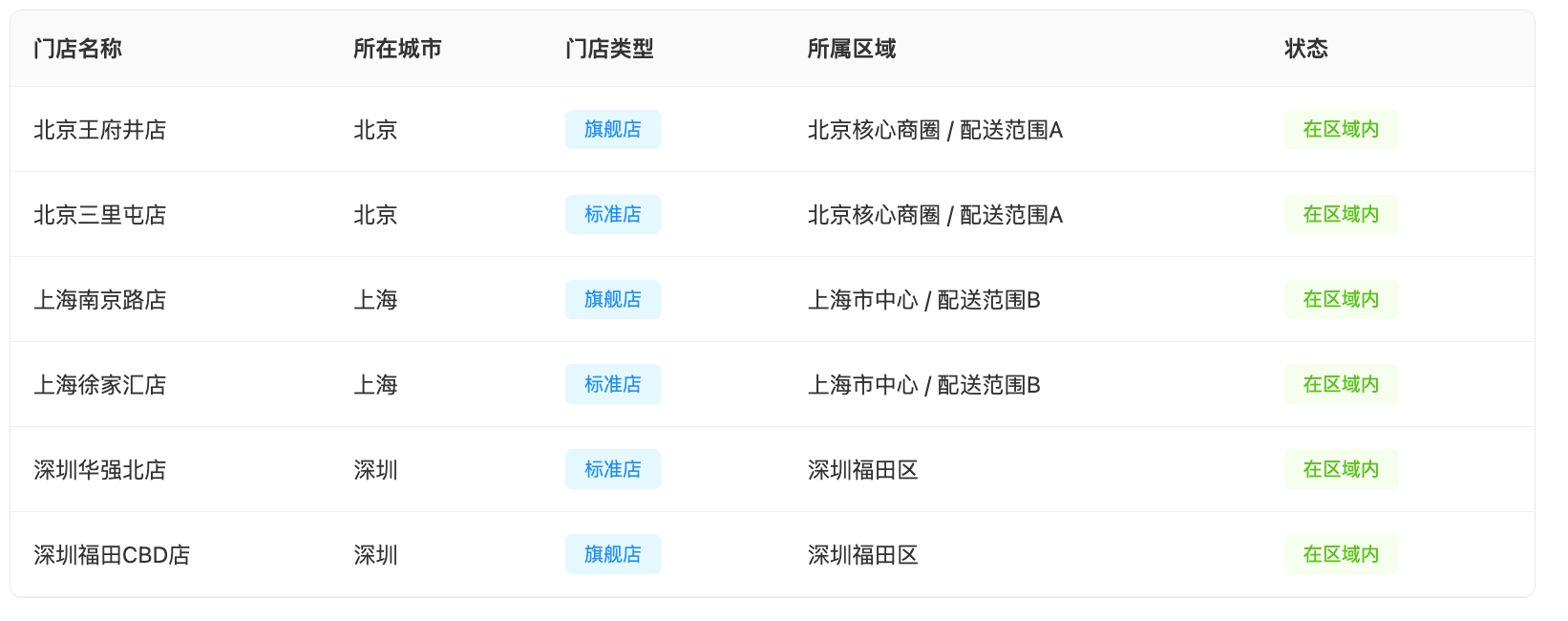
Geofencing analysis: Determine whether stores are within their designated service areas
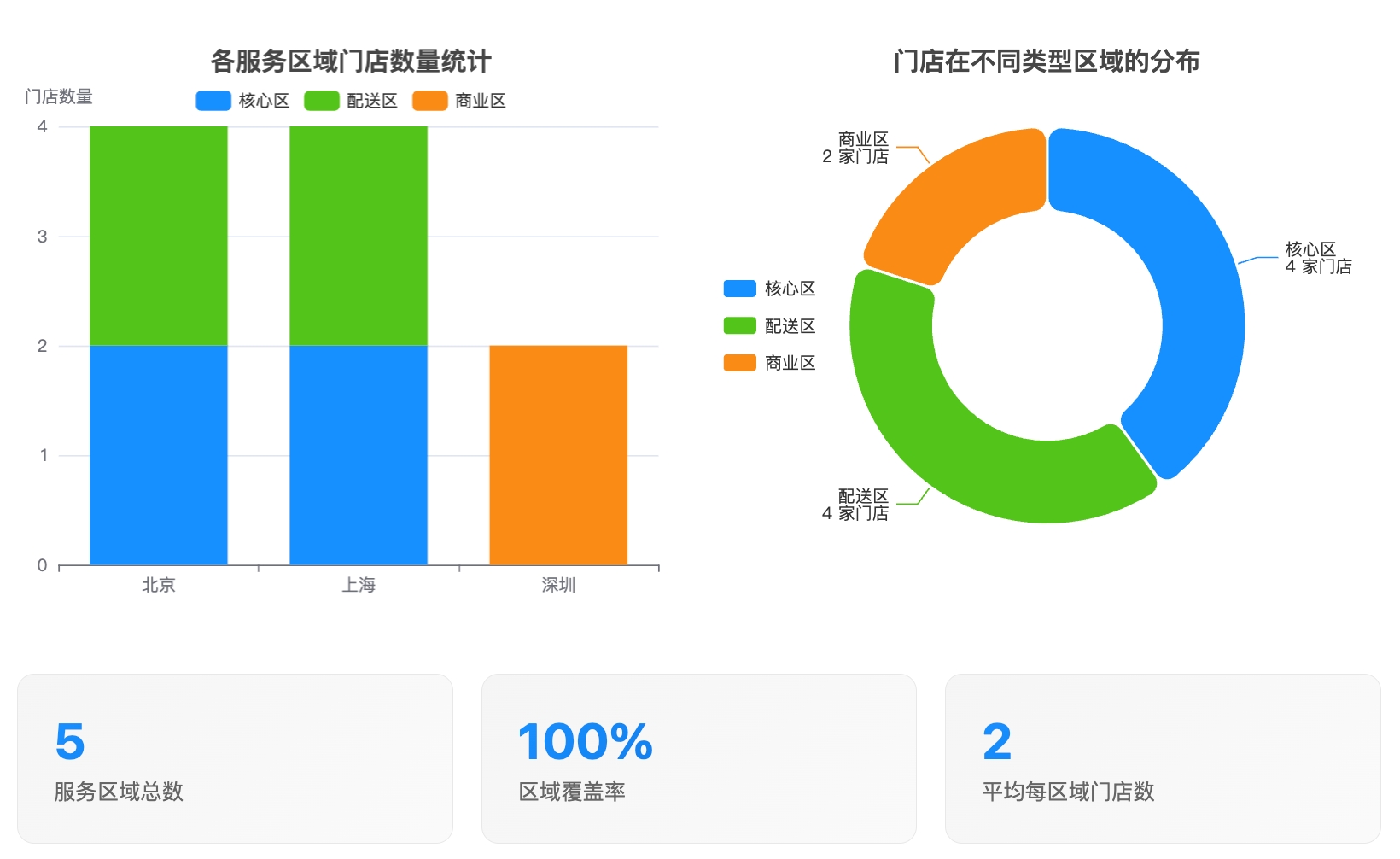
Regional statistical analysis: Analyze store distribution across service areas
Esri Geometry: esri-geometry-api and spatial-sdk-hive are open-source geospatial computation libraries released by Esri, widely used in the big data domain.
Core Advantages:
Industry Standard: As a GIS leader, Esri's geometry algorithm library has become the de facto standard
Full Functionality: Supports all OGC standards, including geometry types such as points, lines, and polygons, as well as spatial operations
Application Scenarios: Logistics and delivery, LBS services, trade area analysis, urban planning
By integrating Esri's open-source geospatial computation libraries, Lakehouse provides standardized geospatial data processing capabilities.
Prerequisites
Lakehouse environment is ready
Permission to create external functions and API CONNECTION
Step 1: Prepare JAR Packages
1.1 Download Required JAR Packages
Download the following two JAR packages from Esri's official repositories:
Upload the downloaded JAR packages to the Lakehouse USER VOLUME (upload operations are only supported in Lakehouse clients such as SQLLine and are not supported in Lakehouse Studio):
PUT '/Users/derekmeng/Downloads/esri-geometry-api-2.2.0.jar' to USER VOLUME;
PUT '/Users/derekmeng/Downloads/spatial-sdk-hive-2.2.0.jar' to USER VOLUME;
Step 2: Create API Connection
If you do not yet have a suitable API Connection, you need to create one first. This example uses Alibaba Cloud Function Compute. For detailed steps, see: Create API CONNECTION
CREATE API CONNECTION fc_api_conn
TYPE cloud_function
provider = 'aliyun'
region = 'cn-shanghai'
role_arn = 'acs:ram::122280886xxxxxxx:role/functionrole'
namespace = 'default'
code_bucket = '[bucket_name]';
You can view connections via show connections.
Step 3: Batch Create Geospatial Functions
3.1 Create Commonly Used Geospatial Functions
Below are the creation scripts for the most commonly used geospatial functions in production environments. For detailed information, see CREATE EXTERNAL FUNCTION:
-- ========================================
-- 1. Geometry Constructor Functions
-- ========================================
-- Create point
CREATE EXTERNAL FUNCTION public.ST_Point AS 'com.esri.hadoop.hive.ST_Point'
USING jar 'volume:user://~/esri-geometry-api-2.2.0.jar',
jar 'volume:user://~/spatial-sdk-hive-2.2.0.jar'
CONNECTION sg_fc_api_conn
WITH PROPERTIES (
'remote.udf.api' = 'java8.hive2.v0',
'remote.udf.protocol' = 'http.arrow.v0'
);
-- Create polygon
CREATE EXTERNAL FUNCTION public.ST_Polygon AS 'com.esri.hadoop.hive.ST_Polygon'
USING jar 'volume:user://~/esri-geometry-api-2.2.0.jar',
jar 'volume:user://~/spatial-sdk-hive-2.2.0.jar'
CONNECTION sg_fc_api_conn
WITH PROPERTIES (
'remote.udf.api' = 'java8.hive2.v0',
'remote.udf.protocol' = 'http.arrow.v0'
);
-- Create line
CREATE EXTERNAL FUNCTION public.ST_LineString AS 'com.esri.hadoop.hive.ST_LineString'
USING jar 'volume:user://~/esri-geometry-api-2.2.0.jar',
jar 'volume:user://~/spatial-sdk-hive-2.2.0.jar'
CONNECTION sg_fc_api_conn
WITH PROPERTIES (
'remote.udf.api' = 'java8.hive2.v0',
'remote.udf.protocol' = 'http.arrow.v0'
);
-- ========================================
-- 2. Format Conversion Functions
-- ========================================
-- Create geometry from WKT text (most commonly used)
CREATE EXTERNAL FUNCTION public.ST_GeomFromText AS 'com.esri.hadoop.hive.ST_GeomFromText'
USING jar 'volume:user://~/esri-geometry-api-2.2.0.jar',
jar 'volume:user://~/spatial-sdk-hive-2.2.0.jar'
CONNECTION sg_fc_api_conn
WITH PROPERTIES (
'remote.udf.api' = 'java8.hive2.v0',
'remote.udf.protocol' = 'http.arrow.v0'
);
-- Convert to WKT text
CREATE EXTERNAL FUNCTION public.ST_AsText AS 'com.esri.hadoop.hive.ST_AsText'
USING jar 'volume:user://~/esri-geometry-api-2.2.0.jar',
jar 'volume:user://~/spatial-sdk-hive-2.2.0.jar'
CONNECTION sg_fc_api_conn
WITH PROPERTIES (
'remote.udf.api' = 'java8.hive2.v0',
'remote.udf.protocol' = 'http.arrow.v0'
);
-- Create geometry from GeoJSON
CREATE EXTERNAL FUNCTION public.ST_GeomFromGeoJSON AS 'com.esri.hadoop.hive.ST_GeomFromGeoJson'
USING jar 'volume:user://~/esri-geometry-api-2.2.0.jar',
jar 'volume:user://~/spatial-sdk-hive-2.2.0.jar'
CONNECTION sg_fc_api_conn
WITH PROPERTIES (
'remote.udf.api' = 'java8.hive2.v0',
'remote.udf.protocol' = 'http.arrow.v0'
);
-- ========================================
-- 3. Spatial Relationship Functions (Core Production Functions)
-- ========================================
-- Contains relationship (most commonly used for geofencing)
CREATE EXTERNAL FUNCTION public.ST_Contains AS 'com.esri.hadoop.hive.ST_Contains'
USING jar 'volume:user://~/esri-geometry-api-2.2.0.jar',
jar 'volume:user://~/spatial-sdk-hive-2.2.0.jar'
CONNECTION sg_fc_api_conn
WITH PROPERTIES (
'remote.udf.api' = 'java8.hive2.v0',
'remote.udf.protocol' = 'http.arrow.v0'
);
-- Intersects relationship
CREATE EXTERNAL FUNCTION public.ST_Intersects AS 'com.esri.hadoop.hive.ST_Intersects'
USING jar 'volume:user://~/esri-geometry-api-2.2.0.jar',
jar 'volume:user://~/spatial-sdk-hive-2.2.0.jar'
CONNECTION sg_fc_api_conn
WITH PROPERTIES (
'remote.udf.api' = 'java8.hive2.v0',
'remote.udf.protocol' = 'http.arrow.v0'
);
-- Within relationship
CREATE EXTERNAL FUNCTION public.ST_Within AS 'com.esri.hadoop.hive.ST_Within'
USING jar 'volume:user://~/esri-geometry-api-2.2.0.jar',
jar 'volume:user://~/spatial-sdk-hive-2.2.0.jar'
CONNECTION sg_fc_api_conn
WITH PROPERTIES (
'remote.udf.api' = 'java8.hive2.v0',
'remote.udf.protocol' = 'http.arrow.v0'
);
-- ========================================
-- 4. Spatial Computation Functions
-- ========================================
-- Buffer (used for creating service areas)
CREATE EXTERNAL FUNCTION public.ST_Buffer AS 'com.esri.hadoop.hive.ST_Buffer'
USING jar 'volume:user://~/esri-geometry-api-2.2.0.jar',
jar 'volume:user://~/spatial-sdk-hive-2.2.0.jar'
CONNECTION sg_fc_api_conn
WITH PROPERTIES (
'remote.udf.api' = 'java8.hive2.v0',
'remote.udf.protocol' = 'http.arrow.v0'
);
-- Distance calculation (used for nearest-neighbor queries)
CREATE EXTERNAL FUNCTION public.ST_Distance AS 'com.esri.hadoop.hive.ST_Distance'
USING jar 'volume:user://~/esri-geometry-api-2.2.0.jar',
jar 'volume:user://~/spatial-sdk-hive-2.2.0.jar'
CONNECTION sg_fc_api_conn
WITH PROPERTIES (
'remote.udf.api' = 'java8.hive2.v0',
'remote.udf.protocol' = 'http.arrow.v0'
);
-- Area calculation
CREATE EXTERNAL FUNCTION public.ST_Area AS 'com.esri.hadoop.hive.ST_Area'
USING jar 'volume:user://~/esri-geometry-api-2.2.0.jar',
jar 'volume:user://~/spatial-sdk-hive-2.2.0.jar'
CONNECTION sg_fc_api_conn
WITH PROPERTIES (
'remote.udf.api' = 'java8.hive2.v0',
'remote.udf.protocol' = 'http.arrow.v0'
);
-- ========================================
-- 5. Geometry Property Extraction Functions
-- ========================================
-- Extract X coordinate (longitude) of a point
CREATE EXTERNAL FUNCTION public.ST_X AS 'com.esri.hadoop.hive.ST_X'
USING jar 'volume:user://~/esri-geometry-api-2.2.0.jar',
jar 'volume:user://~/spatial-sdk-hive-2.2.0.jar'
CONNECTION sg_fc_api_conn
WITH PROPERTIES (
'remote.udf.api' = 'java8.hive2.v0',
'remote.udf.protocol' = 'http.arrow.v0'
);
-- Extract Y coordinate (latitude) of a point
CREATE EXTERNAL FUNCTION public.ST_Y AS 'com.esri.hadoop.hive.ST_Y'
USING jar 'volume:user://~/esri-geometry-api-2.2.0.jar',
jar 'volume:user://~/spatial-sdk-hive-2.2.0.jar'
CONNECTION sg_fc_api_conn
WITH PROPERTIES (
'remote.udf.api' = 'java8.hive2.v0',
'remote.udf.protocol' = 'http.arrow.v0'
);
-- View created geospatial functions
USE public;
SHOW EXTERNAL FUNCTIONS;
Step 4: Create Test Data
To verify function functionality, create test tables containing geospatial information:
-- Create store locations table
CREATE TABLE IF NOT EXISTS store_locations (
store_id INT,
store_name STRING,
location STRING, -- WKT format point
city STRING,
store_type STRING
);
-- Create service areas table
CREATE TABLE IF NOT EXISTS service_areas (
area_id INT,
area_name STRING,
boundary STRING, -- WKT format polygon
area_type STRING,
city STRING
);
-- Insert sample store data
INSERT INTO store_locations VALUES
(1, 'Beijing Wangfujing Store', 'POINT(116.410 39.914)', 'Beijing', 'Flagship'),
(2, 'Beijing Sanlitun Store', 'POINT(116.454 39.934)', 'Beijing', 'Standard'),
(3, 'Shanghai Nanjing Road Store', 'POINT(121.473 31.232)', 'Shanghai', 'Flagship'),
(4, 'Shanghai Xujiahui Store', 'POINT(121.437 31.195)', 'Shanghai', 'Standard'),
(5, 'Shenzhen Huaqiangbei Store', 'POINT(114.085 22.547)', 'Shenzhen', 'Standard'),
(6, 'Shenzhen Futian CBD Store', 'POINT(114.059 22.536)', 'Shenzhen', 'Flagship'),
(7, 'Guangzhou Tianhe Store', 'POINT(113.321 23.125)', 'Guangzhou', 'Flagship'),
(8, 'Hangzhou West Lake Store', 'POINT(120.147 30.242)', 'Hangzhou', 'Standard');
-- Insert sample service area data
INSERT INTO service_areas VALUES
(1, 'Beijing Core Commercial District', 'POLYGON((116.38 39.88, 116.48 39.88, 116.48 39.96, 116.38 39.96, 116.38 39.88))', 'Core', 'Beijing'),
(2, 'Shanghai City Center', 'POLYGON((121.43 31.18, 121.52 31.18, 121.52 31.26, 121.43 31.26, 121.43 31.18))', 'Core', 'Shanghai'),
(3, 'Shenzhen Futian District', 'POLYGON((114.02 22.51, 114.13 22.51, 114.13 22.58, 114.02 22.58, 114.02 22.51))', 'Commercial', 'Shenzhen'),
(4, 'Delivery Zone A', 'POLYGON((116.35 39.85, 116.50 39.85, 116.50 39.98, 116.35 39.98, 116.35 39.85))', 'Delivery', 'Beijing'),
(5, 'Delivery Zone B', 'POLYGON((121.40 31.15, 121.55 31.15, 121.55 31.28, 121.40 31.28, 121.40 31.15))', 'Delivery', 'Shanghai');
Step 5: Production Scenario Validation
Scenario 1: Geofencing Analysis -- Determine Whether Stores Are Within Service Areas
This is the most common application scenario, used to determine whether users, stores, or devices are within a specified service area.
-- Query which stores are within each service area
SELECT
s.store_name,
s.city as store_city,
a.area_name,
a.area_type
FROM
store_locations s
JOIN service_areas a
ON public.ST_Contains(
public.ST_GeomFromText(a.boundary),
public.ST_GeomFromText(s.location)
) = true
ORDER BY a.area_name, s.store_name;
-- Count the number of stores in each service area
SELECT
a.area_name,
a.area_type,
COUNT(s.store_id) as store_count,
COLLECT_LIST(s.store_name) as stores_in_area
FROM
service_areas a
LEFT JOIN store_locations s
ON public.ST_Contains(
public.ST_GeomFromText(a.boundary),
public.ST_GeomFromText(s.location)
) = true
GROUP BY a.area_name, a.area_type
ORDER BY store_count DESC;
Scenario 2: Nearest Neighbor Query -- Find the Nearest Stores
Used to recommend the nearest service points to users or perform resource allocation.
-- Find the 3 closest stores to a specified location
WITH user_location AS (
SELECT public.ST_Point(116.397, 39.908) as location -- Tiananmen Square, Beijing
)
SELECT
s.store_name,
s.city,
s.store_type,
public.ST_Distance(
u.location,
public.ST_GeomFromText(s.location)
) as distance_degrees,
-- Rough conversion to kilometers (1 degree is approximately 111 km)
public.ST_Distance(
u.location,
public.ST_GeomFromText(s.location)
) * 111 as distance_km
FROM
store_locations s
CROSS JOIN user_location u
ORDER BY distance_degrees
LIMIT 3;
Scenario 3: Buffer Analysis -- Create Delivery Zones
Create delivery zones for each store for service area planning.
-- Create a 5 km delivery zone for flagship stores (approximately 0.045 degrees)
SELECT
store_name,
city,
location as original_location,
public.ST_Buffer(
public.ST_GeomFromText(location),
0.045 -- approximately 5 km
) as delivery_area
FROM
store_locations
WHERE
store_type = 'Flagship';
-- Query whether a point falls within any flagship store's delivery zone
WITH delivery_zones AS (
SELECT
store_name,
public.ST_Buffer(
public.ST_GeomFromText(location),
0.045
) as delivery_area
FROM
store_locations
WHERE
store_type = 'Flagship'
),
test_point AS (
SELECT public.ST_Point(116.420, 39.920) as location -- Test point
)
SELECT
d.store_name,
CASE
WHEN public.ST_Contains(d.delivery_area, t.location) = true
THEN 'Within delivery zone'
ELSE 'Outside delivery zone'
END as delivery_status
FROM
delivery_zones d
CROSS JOIN test_point t;
Scenario 4: Regional Statistical Analysis
Analyze business metrics by region for commercial analysis.
-- Create sales data table
CREATE TABLE IF NOT EXISTS store_sales (
store_id INT,
sales_amount DECIMAL(10,2),
sales_date DATE
);
-- Insert sample sales data
INSERT INTO store_sales VALUES
(1, 125000.50, '2024-06-01'),
(2, 98000.00, '2024-06-01'),
(3, 156000.75, '2024-06-01'),
(4, 87000.25, '2024-06-01'),
(5, 76000.00, '2024-06-01'),
(6, 134000.80, '2024-06-01'),
(7, 145000.60, '2024-06-01'),
(8, 93000.40, '2024-06-01');
-- Aggregate sales by service area
SELECT
a.area_name,
a.area_type,
COUNT(DISTINCT s.store_id) as store_count,
SUM(sales.sales_amount) as total_sales,
AVG(sales.sales_amount) as avg_sales_per_store
FROM
service_areas a
LEFT JOIN store_locations s
ON public.ST_Contains(
public.ST_GeomFromText(a.boundary),
public.ST_GeomFromText(s.location)
) = true
LEFT JOIN store_sales sales
ON s.store_id = sales.store_id
GROUP BY a.area_name, a.area_type
ORDER BY total_sales DESC;
Scenario 5: Coordinate Extraction and Conversion
Extract and convert coordinate information for integration with other systems.
-- Extract latitude and longitude for all stores
SELECT
store_id,
store_name,
city,
public.ST_X(public.ST_GeomFromText(location)) as longitude,
public.ST_Y(public.ST_GeomFromText(location)) as latitude,
location as wkt_format
FROM
store_locations
ORDER BY city, store_name;
-- Create a point and immediately extract coordinates (for data validation)
SELECT
public.ST_X(public.ST_Point(116.397, 39.908)) as x_coord,
public.ST_Y(public.ST_Point(116.397, 39.908)) as y_coord;
Performance Optimization Suggestions
1. Use Materialized Views to Cache Geometry Conversion Results
-- Create a materialized view to pre-convert WKT to binary geometry
CREATE MATERIALIZED VIEW mv_store_locations AS
SELECT
store_id,
store_name,
location as location_wkt,
public.ST_GeomFromText(location) as location_geom,
city,
store_type
FROM
store_locations;
-- Query using the materialized view (better performance)
SELECT
s.store_name,
a.area_name
FROM
mv_store_locations s
JOIN service_areas a
ON public.ST_Contains(
public.ST_GeomFromText(a.boundary),
s.location_geom
) = true;
2. Batch Process Geospatial Data
-- Batch determine whether multiple points are within an area
WITH test_points AS (
SELECT 1 as id, 'POINT(116.400 39.910)' as location
UNION ALL
SELECT 2, 'POINT(121.470 31.230)'
UNION ALL
SELECT 3, 'POINT(114.060 22.540)'
)
SELECT
p.id,
p.location,
a.area_name,
public.ST_Contains(
public.ST_GeomFromText(a.boundary),
public.ST_GeomFromText(p.location)
) as is_inside
FROM
test_points p
CROSS JOIN service_areas a
WHERE
public.ST_Contains(
public.ST_GeomFromText(a.boundary),
public.ST_GeomFromText(p.location)
) = true;
Important Notes
Coordinate System: WGS84 coordinate system (latitude/longitude) is used by default, with distance units in degrees.
Precision Notes: Distance calculations based on latitude/longitude (WGS84) are spherical approximations; precise calculations typically require projection transformation.
Performance Considerations:
For large data volume queries, use bounding boxes (Envelope) for coarse filtering first.
Cache frequently used geometry conversion results.
Complex polygon operations consume more computational resources than simple point operations.
Troubleshooting
Common Errors and Solutions
Function Not Found Error
Error: function not found - ST_Contains. Solution: Use public.ST_Contains
Geometry Format Error
Error: Invalid WKT format. Solution: Check whether the WKT format is correct; polygons must be closed.
JAR Package Path Error
Error: Cannot find jar file. Solution: Use LIST USER VOLUME to verify the file path.