
Task Parameters
What are task parameters
In day-to-day data development, you often encounter situations like these:
- Processing the previous day's data:
WHERE dt = '2023-09-21' - Aggregating last month's data:
WHERE month = '2023-08' - Querying data for a specific city:
WHERE city = 'Shanghai'
If you hard-code dates, cities, and other values directly in your code, the task cannot adapt dynamically at runtime. Task parameters are designed to solve this — use ${parameter_name} as a placeholder in your code, and the system automatically substitutes the actual value at runtime.
Core value: dynamic substitution, flexible configuration, define once and use in multiple places, change parameter values without touching your code logic.
Basic Concepts
| Category | Concept | Meaning | Example |
|---|---|---|---|
| Parameter definition | Custom parameter | Referenced in code using ${parameter_name} | ${yesterday} |
| Parameter value | Constant | A fixed string or number | Shanghai, 1234 |
| Parameter value | System built-in parameter | System-provided dynamic values, such as the scheduled time | sys_plan_datetime |
| Parameter value | Time expression | Format and offset calculations based on the scheduled time | $[yyyy-MM-dd, -1d] |
| Parameter value | Built-in time function | Handles complex time calculations like first day of month, Monday, etc. | first_day_of_month() |
Quick Start
Step 1: Use parameters in your code
Step 2: Configure parameter values
Click the "Parameters" button. The system automatically detects the city and yesterday parameters. Assign values to them:
city=Shanghaiyesterday=$[yyyy-MM-dd, -1d]
Step 3: Run and verify
Click "Run". The system substitutes the parameters before executing (assuming today is 2023-09-22):
Key points:
- The parameter format is always
${parameter_name}. Parameter names may only contain letters, digits, and underscores. - You cannot reference built-in parameters (such as
sys_biz_day) directly in code — you must first assign them to a custom parameter, then reference the custom parameter. - Add quotes in SQL yourself when needed:
'${city}'
Parameter Types and Scope
Task Parameters
Scoped to the current task only. Use these for configuration that is unique to a single task.
How to create: type ${parameter_name} in your script and the system detects it automatically, or click the "Parameters" button to create one manually.
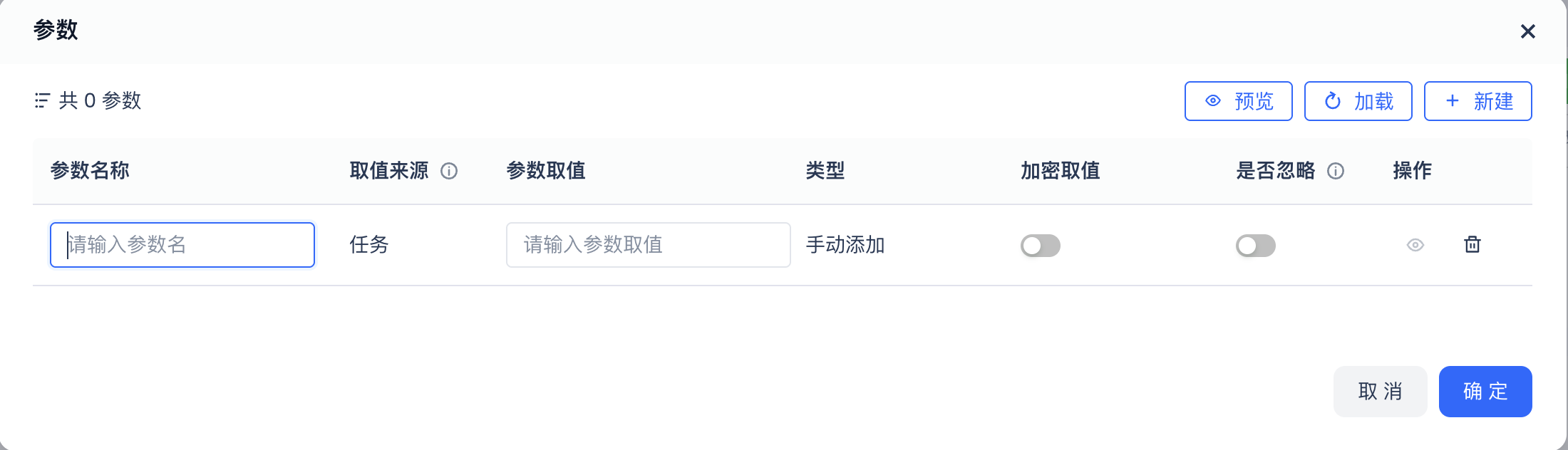
| Field | Description | Example |
|---|---|---|
| Parameter name | Unique identifier for the parameter | city, yesterday |
| Value source | Select "Task" or "Task Group" | Task |
| Parameter value | The actual value or expression | Shanghai, $[yyyy-MM-dd, -1d] |
| Encrypt value | When checked, the value is masked | Use for passwords and other sensitive data |
| Ignore | When checked, no substitution is performed | Treats ${var} as literal text |
Task Group Parameters
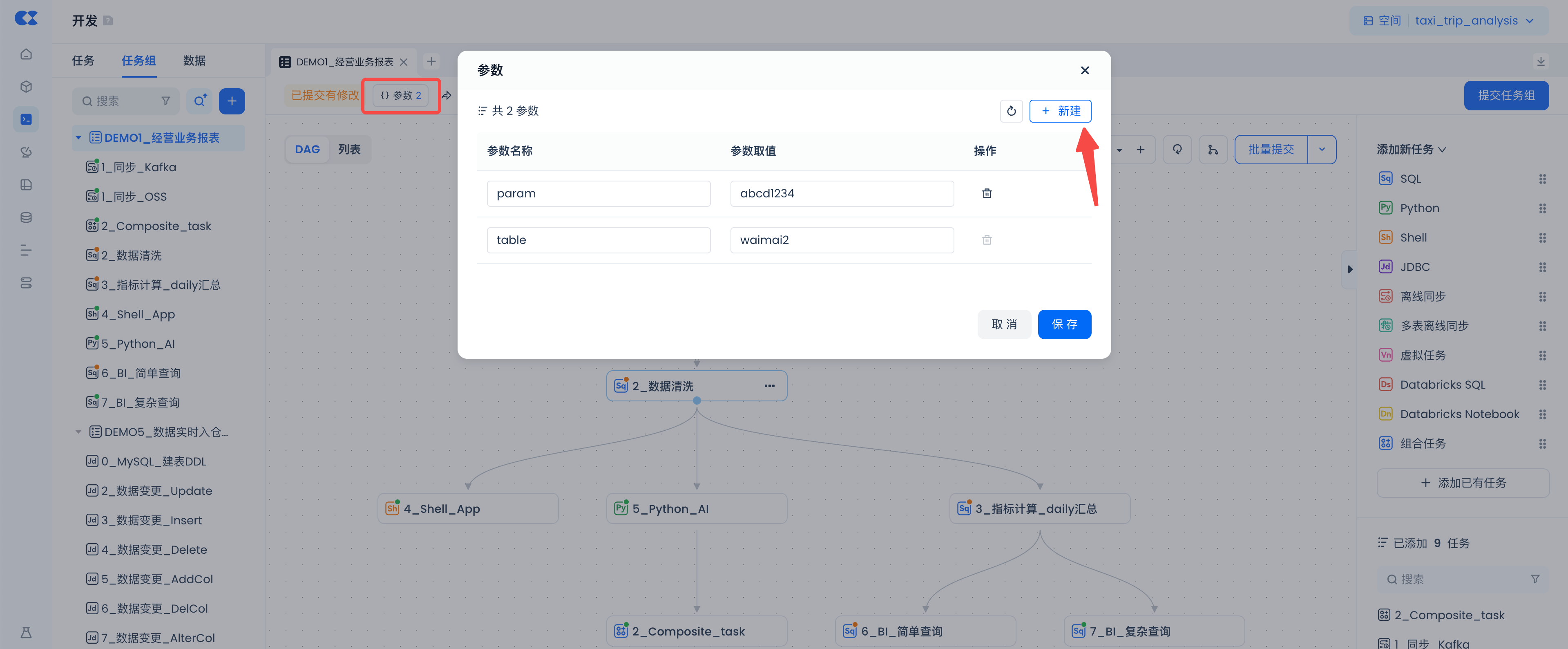
Scoped to all tasks within the task group. Use these for configuration shared across multiple tasks (such as database names or environment identifiers).
On the task group page, click "Parameters" → "New" to create one. When using a task group parameter in a specific task, explicitly switch the value source to "Task Group".
Parameter Behavior by Run Mode
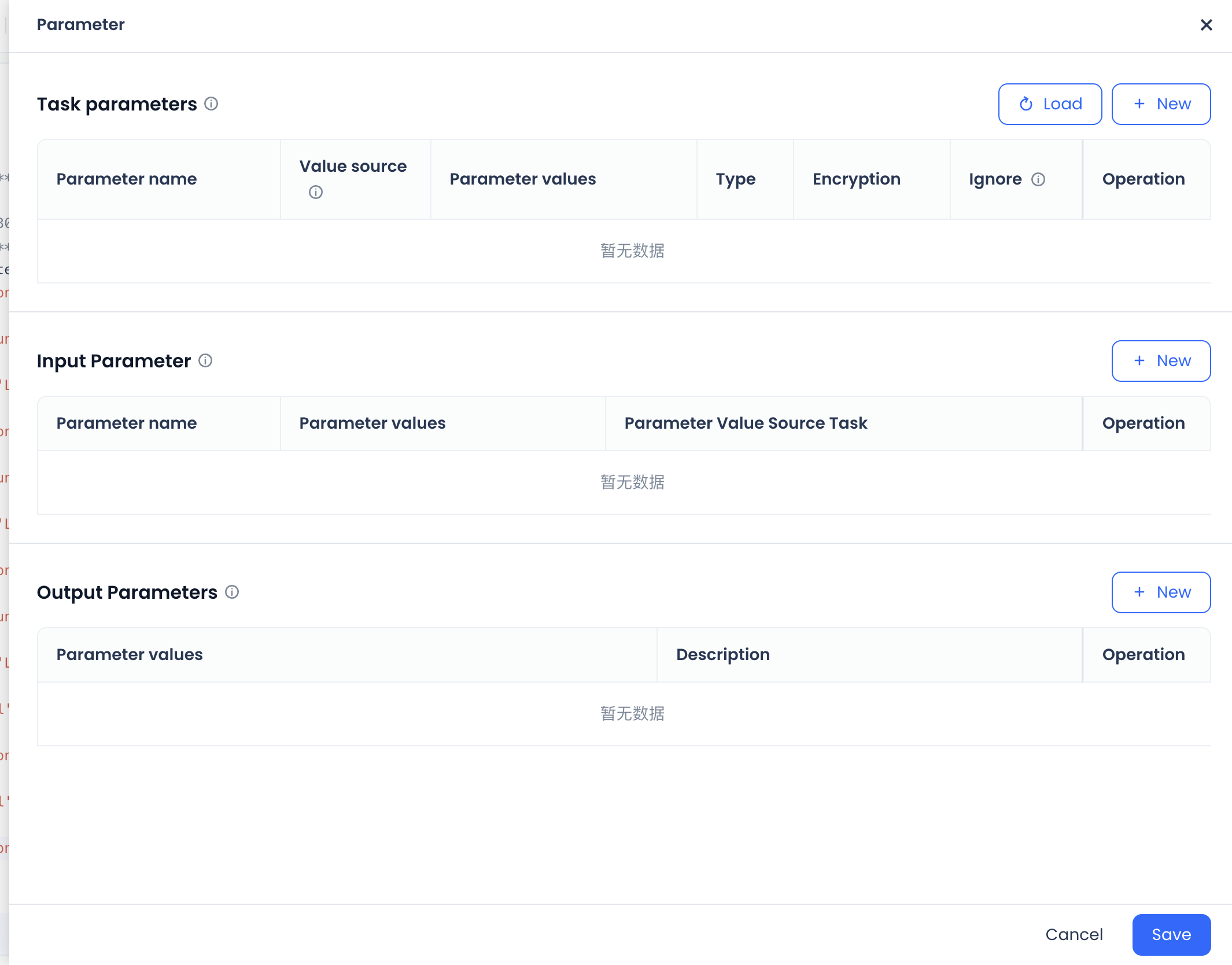
Manual run (clicking the "Run" button)
A dialog prompts you to enter parameter values. The values apply to this run only and do not affect the saved parameter configuration. Useful for debugging and validation.
Scheduled run
Uses the saved parameter configuration and dynamically calculates parameter values based on the scheduled time. Use this in production.
Appendix: How to verify full parameter support
Run the following in a SQL task:
Parameter configuration: lastDay = add_days('yyyy-MM-dd', -1)
If the result is yesterday's date (e.g., 2023-11-11), your account is in the rollout scope and full parameter functionality is supported. If ${lastDay} is not substituted, it is not yet supported.
Related Documentation
| Document | Description |
|---|---|
| Task Parameter Syntax Reference | Complete syntax and quick-reference for system built-in parameters, time expressions, and built-in time functions |
| Task Parameter Examples | Complete business scenario examples for daily reports, monthly reports, weekly reports, timestamp queries, and FAQ |
| Task Development and Scheduling | Creating, scheduling, and operating SQL tasks in Studio |
| Workflow (Composite Task) | Orchestrate multiple parameterized tasks into a DAG with unified scheduling |
| Python Task | Using parameters in Python tasks |