
Analysis Report Creation Guide
Describe what you need in ASK AI to generate a PPT presentation or HTML report, without copying charts one by one or formatting the content manually.
1. Generate a Report with a Single Request
You can create a report based on the analysis results in your current conversation:
You can also request an analysis and a report directly:
Instead of entering your request directly, you can click “+” → “Skills” in the message input box, select “PPT Generation” or “Creative HTML Summary”, and then enter your requirements.
💡 Specify the audience, key points, and preferred number of pages to get results that better match your expectations.

2. Choose a PPT Template
When creating a PPT presentation, you can select a template configured by your organization to match the required color scheme and layout, without uploading a template file each time.
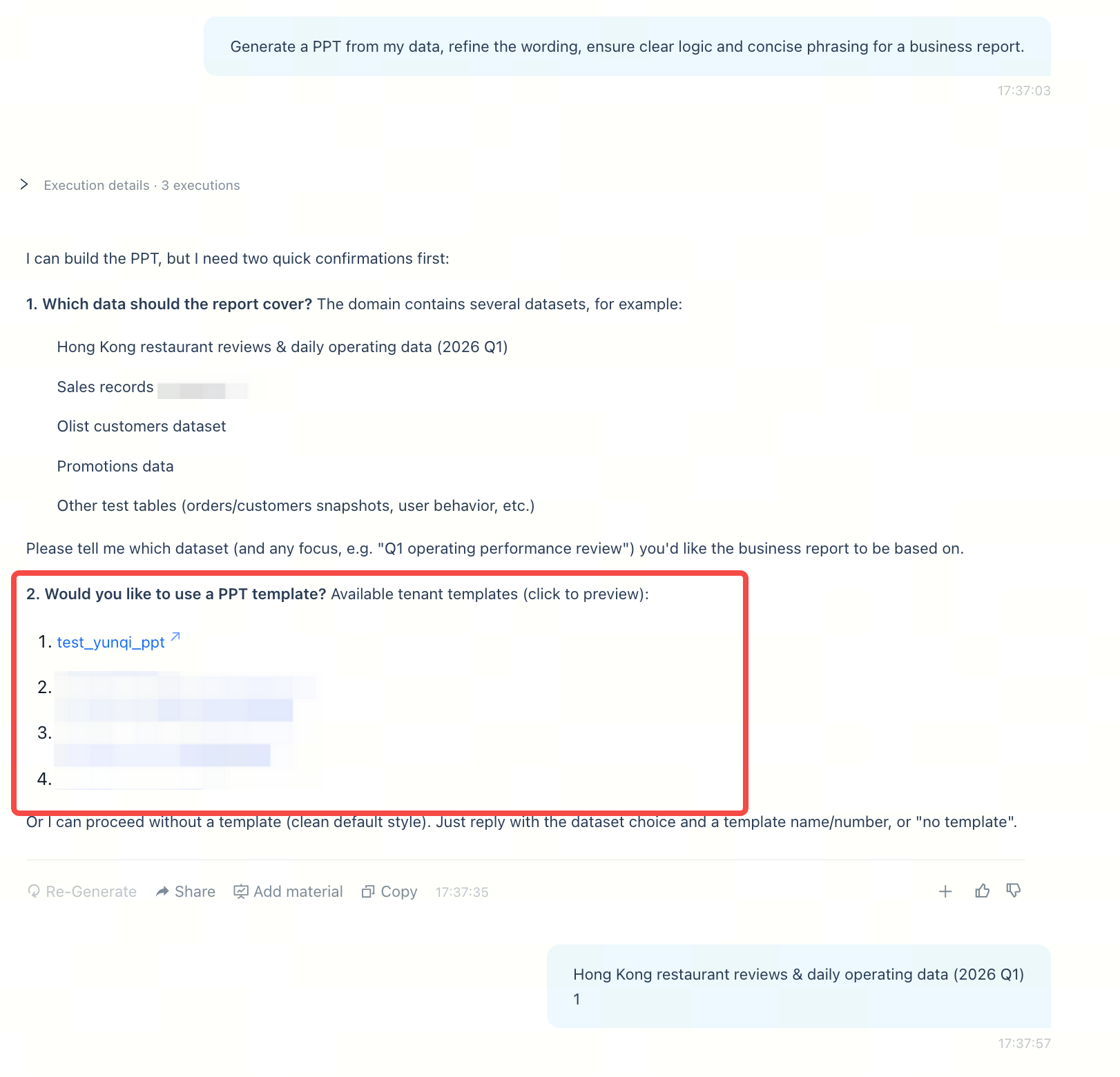
3. Preview the Results and Keep Refining
Once generation is complete, open the report preview in the current conversation to review the content and presentation. To make changes, simply continue with a request in ASK AI:
Once you are satisfied, download the file for use.
💡 Before presenting the report or sharing it externally, verify key data, metric definitions, and analytical conclusions.
4. Reuse Content Across Pages with Material Collections
If your report needs content from different dashboards or conversations, save it to material collections first, then use it together in the report.
- Save materials: Click “Add to Materials” below a response, or select “Add to Materials” from the “···” menu in the upper-right corner of a dashboard, and save the content to the desired material collection.
- Reference materials: Return to the conversation where you are creating the report, click “+” → “Add Material Collection”, and select the materials you need.
- Explain how to use them: Enter your report requirements and tell AI how to use this content.
For example:
If the current conversation already contains everything you need, you can generate the report directly; adding materials first is not required. To include local files, upload them through “+” → “Add Attachment”.
| Add content from a conversation | 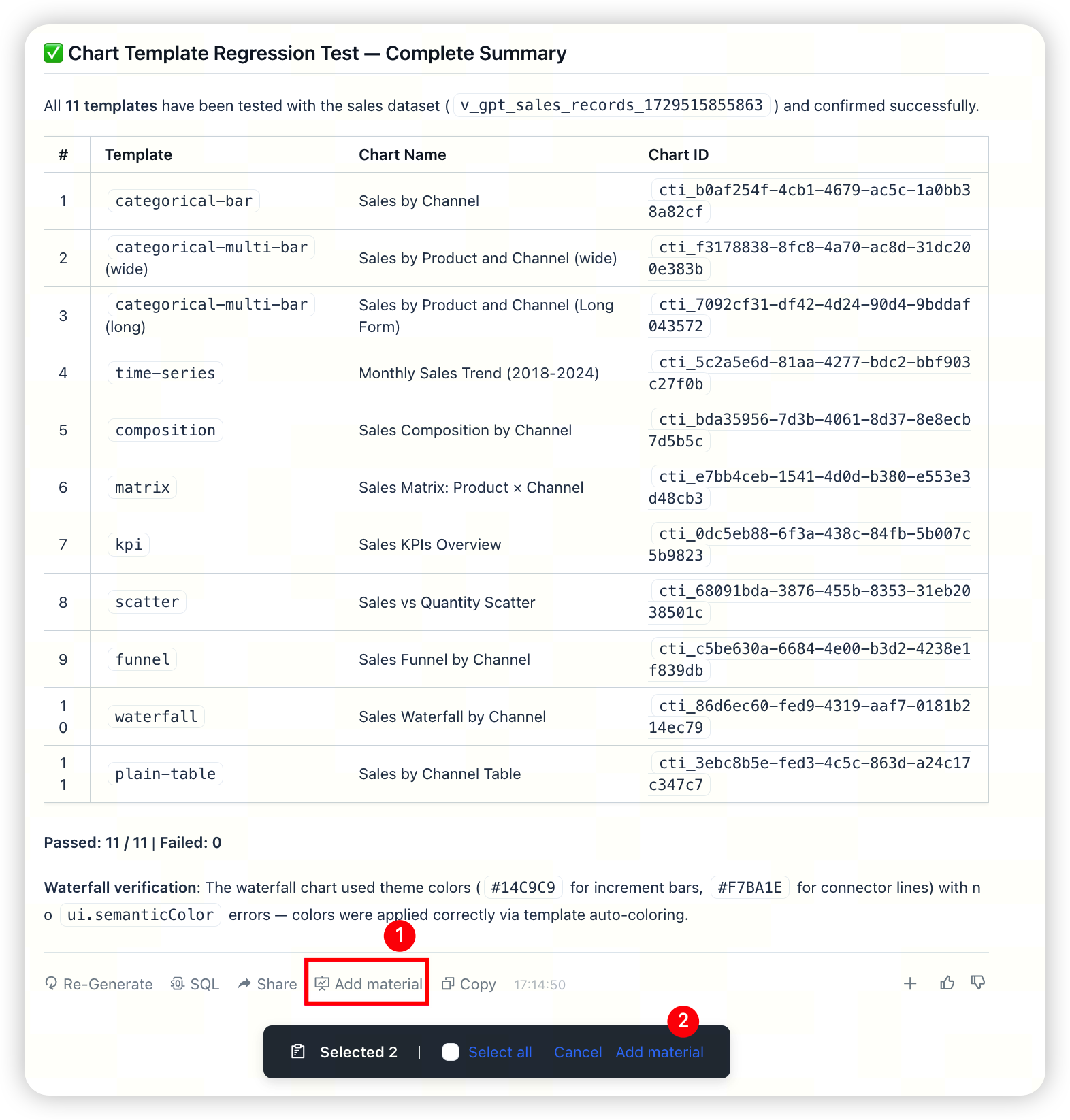 |
|---|---|
| Add content from a dashboard | 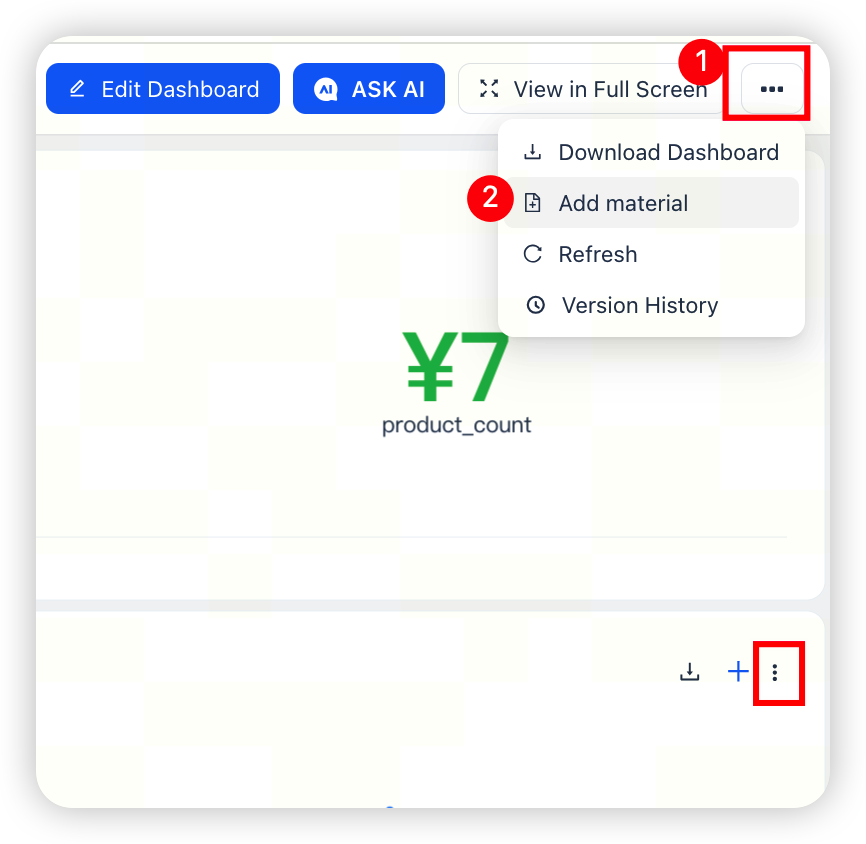 |
| Select materials and apply | 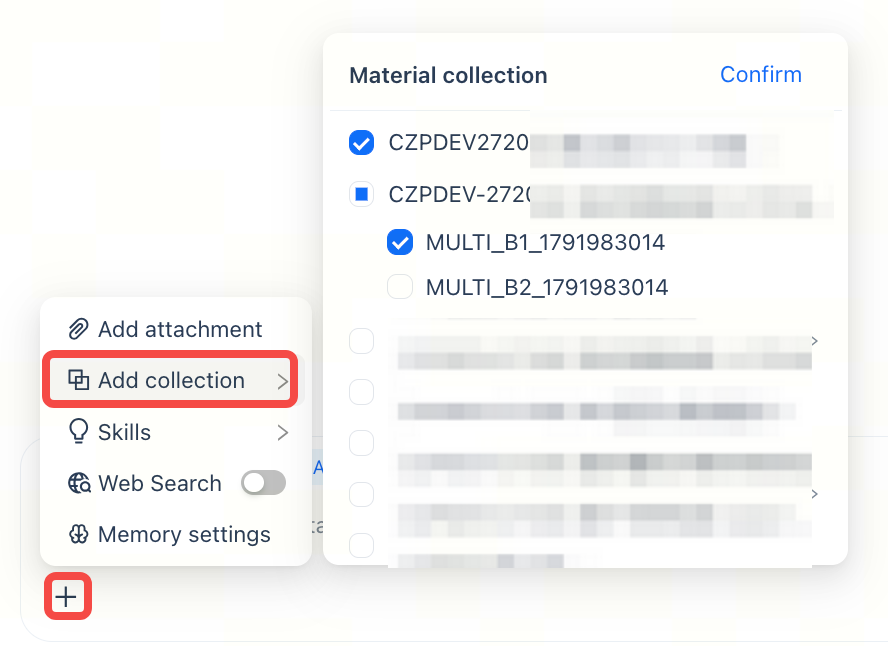 |
5. Administrators: Configure Organization-Wide PPT Templates
To provide templates with a consistent organizational style, an administrator should go to “Management” → “PPT Template Management”, click “Upload Template”, and follow the on-screen instructions to upload and maintain templates for users to select when creating PPT presentations.

Frequently Asked Questions
Do I need to select materials before creating a report?
No. You can create a report directly from the current conversation, or request an analysis and a report through conversation. Select materials only when you need to include content saved from other dashboards or conversations.
What is the difference between “Add to Materials” and “Add Attachment”?
“Add to Materials” saves content from dashboards or conversations to a material collection, which you can later reference in the report conversation through “+ → Add Material Collection”. “Add Attachment” uploads a local file to supplement the current conversation. Saving materials does not automatically generate a report.
How can I make the generated content more relevant to my topic?
Specify the report’s analytical topic, audience, key points, and content order. Add relevant materials when you need information from other dashboards or conversations. Instead of simply asking for a “more professional” report, be specific: “Start with overall performance, then explain the reasons behind changes, and finish with conclusions.”
What should I verify after generation?
Focus on the data, metric definitions, analytical conclusions, and chart presentation. For critical business decisions or external sharing, have someone familiar with the business and metric definitions review the report before use.