
Multi-Table Offline Sync Task
Overview
The multi-table offline sync task is a bulk data synchronization capability provided by Singdata Lakehouse Studio. It supports syncing an entire source database or multiple tables into the Lakehouse on a scheduled basis. Unlike multi-table real-time sync, multi-table offline sync uses periodic full synchronization, making it well-suited for scenarios where data freshness requirements are relatively relaxed and data updates follow a regular cycle.
Use Cases
Multi-table offline sync tasks are suitable for the following scenarios:
- Full-database migration: Batch-sync all tables from a source database to the Lakehouse, reducing the effort of configuring tables one by one.
- Periodic data updates: Source data is updated in fixed cycles (e.g., daily or hourly) and does not need to stay in real-time sync.
- Sharded database consolidation: Merge data from multiple sharded databases and tables into a unified target table.
- Periodic data reconciliation: Use periodic full synchronization to keep target data consistent with the source.
- Resource optimization: Reduce resource consumption through offline sync when real-time freshness is not required.
Features
Supported Data Sources
Source
- MySQL
- PostgreSQL
- SQL Server
- Aurora MySQL
- Aurora PostgreSQL
- PolarDB MySQL
- PolarDB PostgreSQL
Target
- Lakehouse
Sync Modes
- Full-database mirroring: Syncs all tables from the entire source database to the target.
- Multi-table mirroring: Selects multiple source tables to sync to the target, keeping each table structure independent.
- Multi-table merge: Consolidates multiple source tables (e.g., sharded databases and tables) into one or more target tables.
Core Capabilities
- Automatic table creation: Automatically creates tables on the target when they do not exist. Supports both primary-key and non-primary-key tables, and allows flexible use of parameters to customize target table naming.
- Schema evolution: Optionally syncs source schema changes to the target automatically.
- Flexible write modes: Supports multiple write modes including overwrite and upsert.
- Concurrency control: Supports configuring grouping strategies and concurrency levels to optimize sync performance and control pressure on the source.
- Scheduling management: Flexible scheduling based on cron expressions, and can be orchestrated with other task nodes.
Steps
Step 1: Create a Task
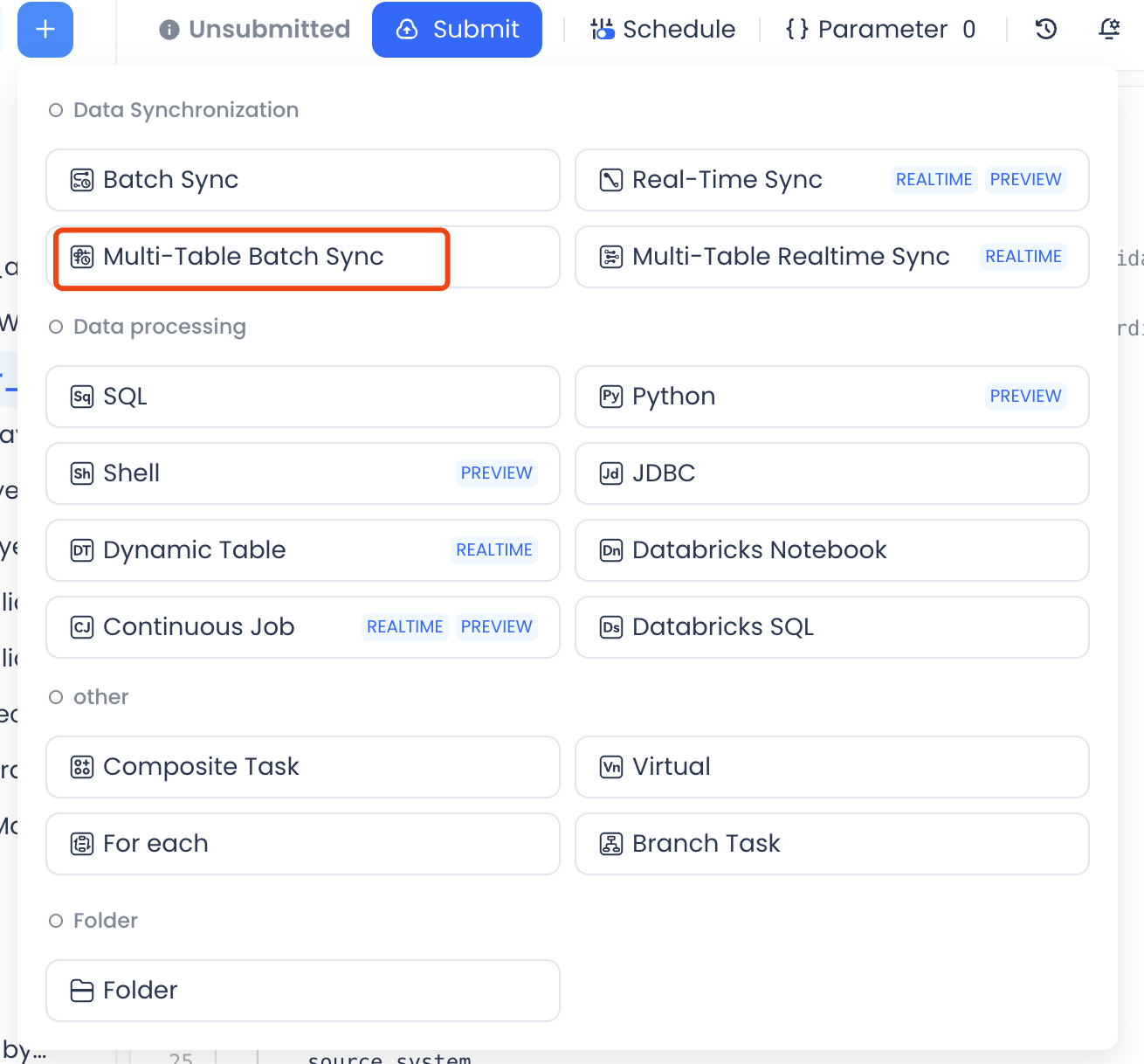
- In the Lakehouse Studio development module, click the New button.
- Under task types, select Multi-table Offline Sync (located in the "Data Sync" group).
- Enter a task name and select a folder.
Step 2: Configure Source Data
Select Data Source Type
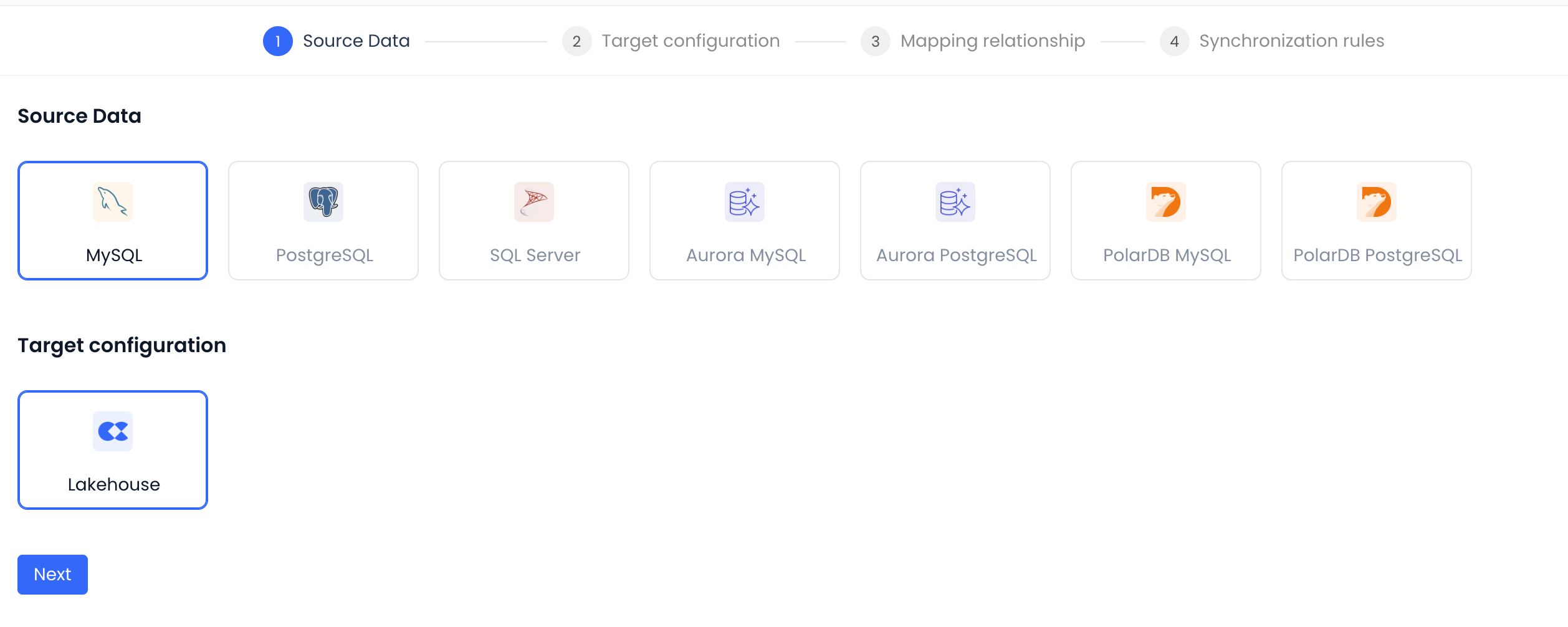
In the Data Source Type section, select the source and target data source types:
- Source: select the database type to sync from (e.g., PostgreSQL, MySQL).
- Target: select Lakehouse.
Select Source Data Source
- Choose a configured data source connection from the Source Data Source dropdown.
- The system will automatically load the list of databases under that data source.
Configure Sync Objects
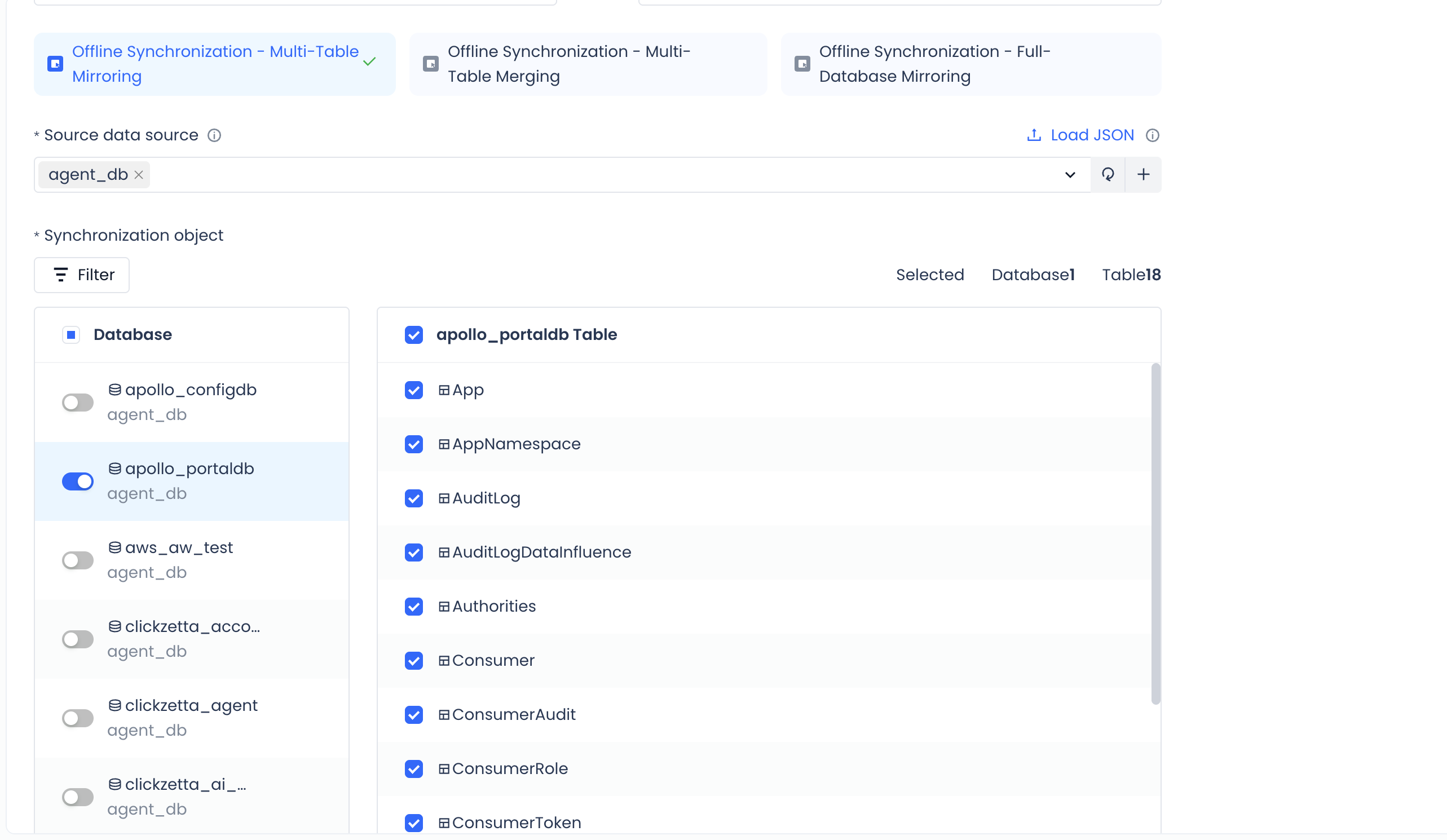
Select sync objects based on your needs:
Full-database mirroring mode
- Select an entire database to sync.
- The system will automatically sync all tables in that database.
Multi-table mirroring mode
- Expand the database and schema structure.
- Check the tables you want to sync.
- Supports batch selection at three levels: database, schema, and table.
Multi-table merge mode
- Configure virtual tables to define how multiple source tables map to target tables.
- Supports batch rule configuration at the database, schema, and table levels to define the source table scope and merge them into the same target table.
Sync object filtering
-
Use the search box to quickly locate tables.
-
Supports filtering by selected / schema / table.
-
The upper-right corner shows a count of selected objects (e.g., "Selected: 3 databases, 45 tables").
Step 3: Configure Target Settings
Select Target Data Source
Select the target Lakehouse data source in the Data Source Type section.
Configure Target Data Source
- Select the target workspace.
- Configure the target namespace (schema).
Namespace Rules
The system provides three naming rules:
- Mirror source: Keep the same name as the source schema.
- Specify: Manually select an existing target schema.
- Custom: Use a rule expression to define the target schema name.
Rule expression reference
-
Supported variables:
{SOURCE_DATABASE}— the source database name.
-
Supported custom task parameters:
- For example,
${bizdate}. See Task Parameters for details.
- For example,
-
Example:
{SOURCE_DATABASE}_${bizdate}
Target Table Naming Rules
Configure the naming rule for target tables:
- Mirror source: Keep the same name as the source table.
- Custom: Use a rule expression to define the target table name.
Rule expression reference
-
Supported variables:
{SOURCE_DATABASE}— source database name;{SOURCE_SCHEMA}— source schema name;{SOURCE_TABLE}— source table name.
-
Supported custom task parameters:
- For example,
${bizdate}. See Task Parameters for details.
- For example,
-
Example:
{SOURCE_DATABASE}_{SOURCE_TABLE}_${bizdate}
Partition Configuration (Optional)
If you need to create partitioned tables, configure:
- Whether to create the table as a partitioned table.
- Partition field selection.
- Partition value expression.
Step 4: Configure Mappings
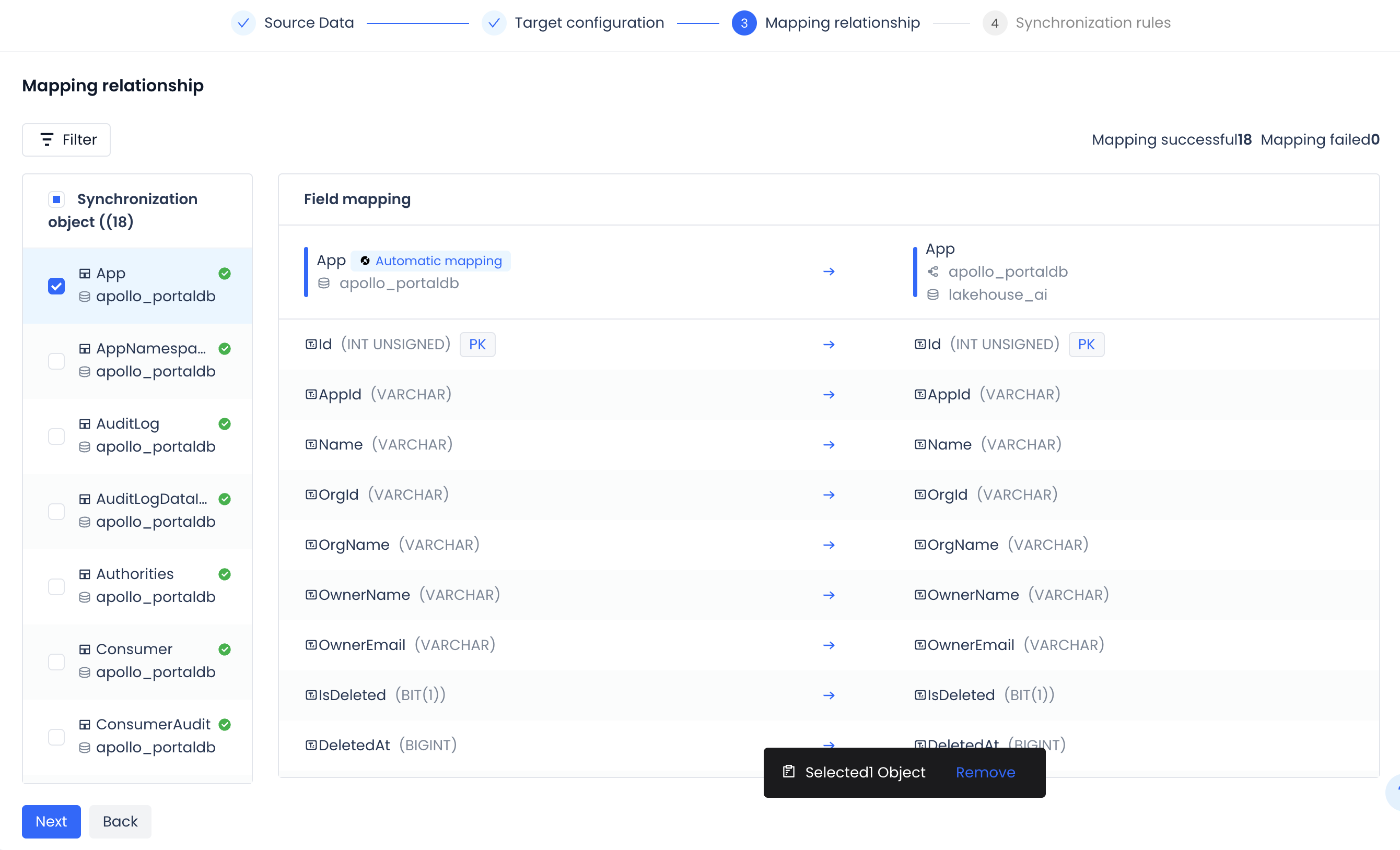
View Sync Objects
The system displays all configured sync objects and their mappings:
- The left side shows the source table list.
- The middle shows field-level mapping details.
- The right side shows the full path of the target table.
Field Mapping
- The system automatically identifies primary keys (marked as PK).
- Displays field type mapping relationships.
- Supports viewing detailed field mappings for each table.
Statistics show:
- Number of successfully mapped objects.
- Number of failed mappings (if any).
Step 5: Configure Sync Rules
Source Data Rules
Source field deleted
- Continue syncing; write null values for deleted fields.
Source field added
- Auto-adapt; add the new field to the target table.
Source table deleted
- Auto-adapt; continue syncing and ignore the deleted table.
Grouping Strategy
Controls how sync tasks are grouped and executed concurrently:
Smart grouping
- The system automatically groups tables based on characteristics such as table size.
Static grouping
- Groups tables by a fixed count.
- You can configure the number of tables per group.
Concurrency Control
Tables per group
- Manually specified in static grouping mode.
- Controls how many tables are in a single group.
- Default: 4.
Max source connections per group
- Limits the maximum concurrent connections to the source per group.
- Default: 4.
Concurrent groups
- Number of groups that can execute simultaneously.
- Default: 2.
Data Write Mode
Configure write strategies for different table types:
Non-primary-key table write mode
- Overwrite: Clears the target table and writes new data on each sync run.
Primary-key table write mode
- Overwrite: Clears the target table and writes new data on each sync run.
- Upsert: Inserts or updates rows based on the primary key.
Step 6: Debug the Task (Optional)
After completing and saving the task configuration, you will be taken to the task overview page, as shown below:
The Run button in the upper-right corner lets you do a debug run to verify that the data source and task configuration are correct. After triggering a run, you can view the run details in Run History at the lower-right corner of the page.
Step 7: Configure Scheduling
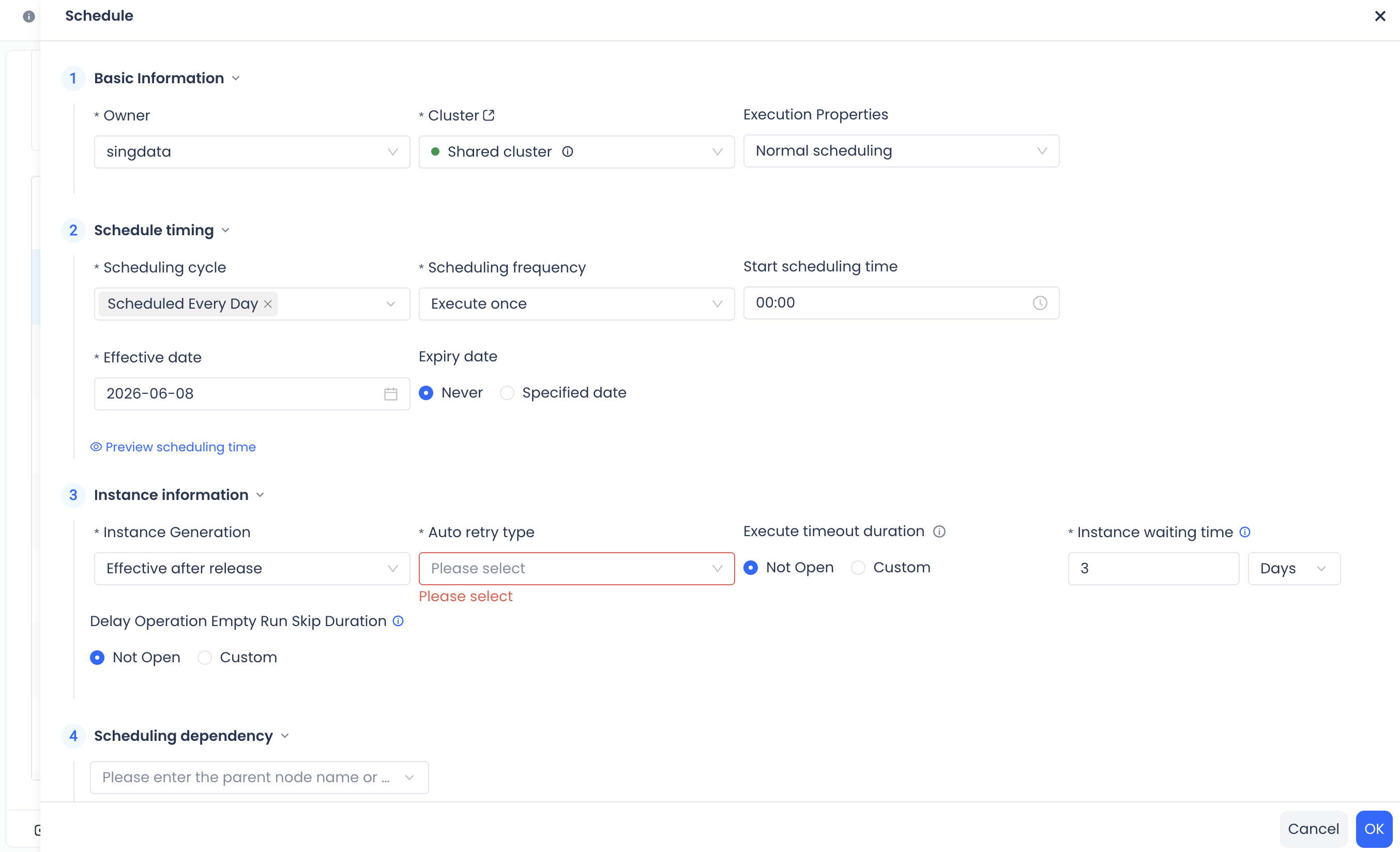
Click the Schedule button to configure the periodic scheduling rules for the task:
-
Scheduling frequency: Choose how often the task runs, such as daily or hourly.
-
Scheduling cycle:
- Supports hourly, daily, weekly, monthly, and other cycles.
- You can use the visual configuration (the system automatically converts it to a cron expression).
-
Effective date and expiration date: Set the start and end dates for task scheduling.
-
Dependency configuration: Set upstream and downstream dependencies for the task (optional).
-
Other configuration: Instance settings and other options, same as the periodic scheduling configuration for regular tasks.
Step 8: Submit the Task
- Click the Submit button after completing the configuration.
- The system validates the configuration.
- After a successful submission, the task enters the scheduling system and runs automatically on the configured cycle.
Task Operations
In Task Operations, multi-table offline sync tasks appear under the Scheduled Tasks category. Click a task name to drill down into its details.
Task Details
On the task details page, you can view:
Task Details tab
- DAG diagram showing upstream and downstream dependencies.
- Task configuration information.
- Scheduling configuration.
- Owner information.
Task Instances tab
- Full list of task instances, including manually triggered runs and scheduled periodic instances.
- Click a specific instance to view its details.
Node Code tab
- Code representation of the task configuration.
Sync Objects tab
- View all source and target tables configured in the task.
- View field mapping relationships.
- Reflects the current configuration state in real time.
Operation Log tab
- Audit information for operations such as pause/resume and publish/update.
Task Actions
Edit:
- Jump directly to the task development interface to modify the configuration.
Pause / Resume: Pause or resume scheduled execution.
Unpublish:
- Stops the task and removes it from the scheduling system; the task reverts to an unsubmitted state.
- Unpublish (including downstream): Use this to unpublish the current task and all its downstream tasks together. If a task has downstream dependencies, it cannot be unpublished individually.
Backfill:
- Backfill data for historical scheduling cycles.
Instance Management
Instance List
Each task execution generates an instance. Under Task Operations → Instance Operations, you can view instances for multi-table offline sync tasks.
Instance Details
Click an instance ID to view its details:
Instance Details tab
- Upstream and downstream DAG lineage for this instance.
- Instance status, start time, and end time.
- Runtime duration statistics.
Sync Objects tab
- View all tables synced in this run.
- Shows rows read, rows written, and sync rate for each table.
- Displays the execution status of each table.
Script Content tab
- Code representation of the task configuration for this instance.
Execution Log tab
- View detailed execution logs.
- Includes log information for initialization, table sync, completion, and other stages.
Operation Log tab
- Audit log for instance operations such as rerun and set success / set failure.
Instance Actions
Rerun
- Re-execute this instance.
- Supports selecting the rerun scope:
- All objects: re-sync all tables.
- Failed objects only: rerun only the tables that failed.
Set Success / Set Failure
- Manually set the final status of the instance.
Cancel Run
- Force-terminate a running instance.
Single-table actions (in the Sync Objects tab)
- View sync details: view the sync details for a single table.
- Re-sync: re-sync only this table.
- Force stop: terminate the sync for this table.
Monitoring and Alerting
Configure Alert Rules
Multi-table offline sync tasks support the same monitoring alerts as other scheduled tasks. You can also configure additional alerts for individual tables within a sync task:
Alert: Task instance failure
- Alert type: event alert.
- Trigger condition: the entire task instance fails.
- Supports configuring alert filter conditions.
Alert: Multi-table offline sync — single-table sync failure
- Alert type: event alert.
- Trigger condition: any target table in the task fails to sync.
- Alert granularity: per target table — each failed table triggers an independent alert.
- Supports configuring alert recipients and notification methods.
Important Notes
Permission Requirements
- Source permissions: The account configured in the data source must have permission to read source database metadata and table data (SELECT privilege).
- Target permissions: The task owner must have permission to create tables and insert data in the target Lakehouse (CREATE and INSERT privileges).
Performance Considerations
- Source pressure: Configure concurrency appropriately to avoid putting excessive load on the source database.
- Initialization time: The first run requires initializing all sync objects, which may take a significant amount of time.
- Table count: Keep the number of tables in a single task within a reasonable range — too many tables can reduce task execution efficiency.
Data Consistency
- Overwrite mode: Each run completely refreshes the target table data.
- Upsert mode: Incremental updates are applied based on the primary key.
- Source data changes: Offline sync uses periodic full synchronization. Any data changes between two sync runs will be reflected in the next run.
Schema Evolution Limitations
When Schema Evolution is enabled, note the following:
- Modifying primary key fields is not supported (Lakehouse primary-key table limitation).
- Field type changes are only supported for same-type widening (e.g., int8 → int16 → int32 → int64).
- Cross-type conversions (e.g., int → double) are not supported.
- This feature is recommended only when the source schema is relatively stable.
Best Practices
- Task granularity: Divide tasks based on business relevance and sync requirements.
- Scheduling time: Choose time windows when the source database is under lower load.
- Test before scheduling: Use the Run function to test with a small batch of data before enabling full scheduled runs.
- Configure alerts: Set up alert rules promptly so you are notified quickly when sync issues occur.
- Regular review: Periodically check the "Table Auto-change Records" to stay informed about schema changes.
Related Documentation
- Task Development
- Data Source Connection Configuration
- Scheduling Management
- Task and Instance Operations
For other questions, contact technical support or refer to the full product documentation.