
Task Group
Concept
A task group is a virtual business management group within the development module used to manage a list of tasks. You can use task groups to organize and orchestrate a series of tasks — including adding or creating task nodes, defining dependencies between nodes, configuring task group parameters, and performing unified batch submission.
This article covers how to create, edit, and submit task groups, as well as how to copy them.
Usage Restrictions
-
Only periodic tasks can be added or created within a task group. Real-time tasks are not supported at this time.
-
Task group parameters only take effect after the task group has been submitted and published. Until then, any task node that references a task group parameter will not have access to the configured variable value during execution.
For example, if a task group parameter is set to
aaa=2023and a task references it, but the task group has not been submitted, the instance parameter will appear empty during periodic execution. -
A task node can only belong to one task group.
-
Downstream link copying: Only nodes within the current workspace can be copied. If the downstream link includes task nodes from other workspaces, those nodes will not be included in the copy.
Use Cases
Scenario 1: Batch Task Copy and Dependency Management
When you need to batch-copy a group of tasks that have dependencies and recreate those dependencies in the new tasks, you can use the task group copy feature.
Add the tasks you want to copy (along with their dependencies) to Task Group 1. After copying Task Group 1, the resulting Task Group 2 will contain:
- Copies of all tasks in Task Group 1.
- Nodes that had dependencies within Task Group 1 (such as nodes B, C, D, E, F) will maintain those same dependencies in Task Group 2.
- Nodes outside the task group that had dependencies with nodes inside it (such as nodes A and G) will maintain their original dependencies.
Scenario 2: Task Pipeline Refactoring and Batch Variable Updates
When you need to refactor a branch in the current task pipeline and batch-update custom variables across tasks, you can combine the downstream link copy feature with task groups.
On any node (whether it belongs to a task group or is standalone), clicking "Copy Downstream Link" will batch-copy that node and all its downstream nodes.
Creating a Task Group
Before creating a task group, plan and design a business process that fits your needs. Here are the detailed steps:
- Create a task group.
Method 1: Click "Development" in the left navigation bar → hover over the "+" icon → click "Task Group."
Method 2: Click "Workspace" in the left navigation bar → hover over the New button → click "Task Group."
-
In the New Task Group dialog, enter the task group name.
-
Click OK.
After creation:
- You can manage task nodes within the task group, including creating new tasks or adding existing tasks to the group.
- Once all tasks in the task group are developed, you can submit the entire task group to the production environment directly.
Editing a Task Group
You can design and manage task nodes and dependencies within a task group in either list mode or DAG mode.
- Create/Add nodes: Both modes support creating new task nodes or adding existing tasks to the task group.
-
DAG mode
- Add existing tasks: Click "Add Existing Tasks" on the right, then drag tasks from the list onto the DAG canvas.
- Add new tasks: Under "Add New Task," drag any task node onto the canvas. A creation dialog will appear. Enter the task name and folder, and the new node will be added to the task group.
In DAG mode, click "Added Tasks" at the bottom right to highlight the corresponding node in the diagram.
-
List mode
- Click the "Add" button in the top-right corner of list mode to choose between adding an existing task or creating a new one.
After successfully creating or adding a node, enter the node's editing interface to write the code.
- Create dependencies between tasks:
- In DAG mode: Set scheduling dependencies by dragging dependency lines between nodes. You can also manually edit dependencies through the node's scheduling configuration interface.
- In list mode: Dependencies for newly created nodes can be set automatically based on code lineage or configured manually.
- Task group parameters: These are global parameters for the task group. After the task group is submitted to the production environment, these parameters automatically apply to any task nodes that reference them. Task nodes that were submitted before the task group parameters took effect need to be resubmitted to use the parameters.
- Click the "Parameters" tab in the task group operation area to open the parameter configuration interface.
- Click the New button and enter the parameter name and value in the dialog. For details on built-in parameter values, see Task Parameters. For the full syntax, see Task Parameter Syntax Reference.
After creating task group parameters, use them as follows:
-
In the SQL code of a task node, enter
${task_group_parameter_name}, or enter the parameter name in the scheduling configuration's parameter settings.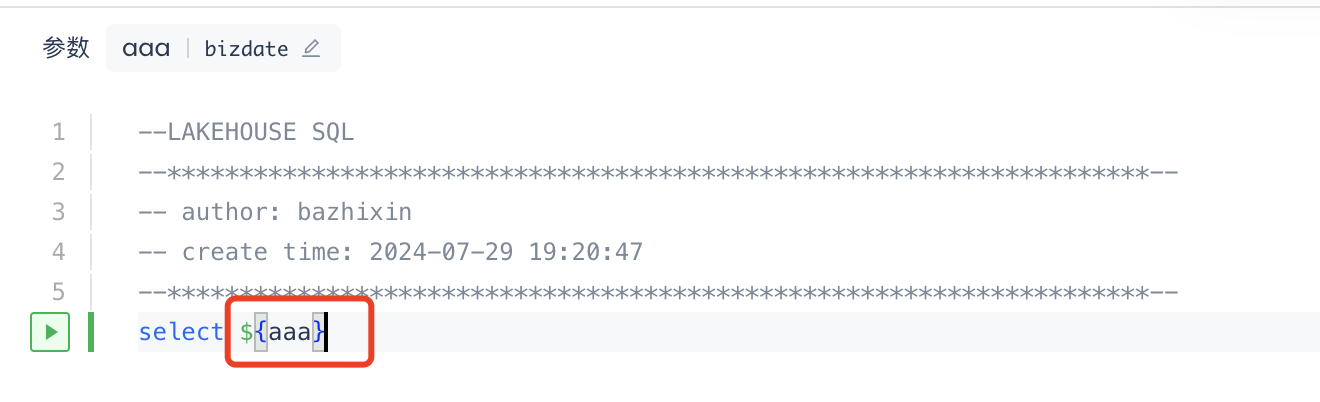
-
In the "Value Source" dropdown, select the task group parameter.
After creating and referencing a task group parameter:
- Task nodes can only use the task group parameter values after the task group has been submitted to the production environment.
- If a task group parameter is updated, the task node must be resubmitted for the change to take effect.
Batch Edit Scheduling Time
You can use the batch edit scheduling time feature to update the scheduling time for all (or selected) tasks in the task group at once, reducing the effort of configuring each task individually. Steps:
- Click "Batch Edit Scheduling Time."
-
In DAG editing mode: Hover over the batch button and select "Edit Scheduling Time."
-
In list mode: Select the target tasks you want to update, then click "Edit Scheduling Time."
-
Batch edit the scheduling time. Select the scheduling time for the batch update. The operation is the same as the scheduling configuration in task scheduling. For details, see Task Development and Scheduling.
-
Confirm and submit the batch operation.
Submitting a Task Group
After editing and creating the task group, you need to submit it to the production environment before the tasks it manages can reference the task group's parameter information. The task group also provides a batch submission feature for task nodes.
-
Click the Submit button in the top-right corner. A task group submission dialog will appear, which also supports batch submission of the task list within the task group.
-
In DAG mode, hover over the batch button to reveal the "Batch Submit Tasks" option. Note that this function only batch-submits the tasks within the task group — it does not submit the task group's own parameters and management information to the production environment.
FAQ
Q1: Why can't I click the Submit button again after the task group has been submitted?
After a task group is submitted, if no changes have been made (i.e., the status has not changed to "Submitted with modifications"), it cannot be submitted again. To batch-submit task information within the task group, use one of these two approaches:
Option 1: Submit directly from within each task.
Option 2: In the task group's DAG mode, click "Batch Submit Tasks" under the batch operations menu.
Task group status changes when:
- Tasks are added to or removed from the task group.
- Task group parameters are added, deleted, modified, or queried.
Related Documentation
- Task Parameters — Task-level parameter concepts and configuration, and how they differ from task group parameters
- Task Parameter Syntax Reference — Full syntax for built-in parameters and time expressions
- Composite Task — How composite task parameters and task group parameters work together
- Task Development and Scheduling — Referencing task group parameters in individual tasks