
Metrics and Answer Builder
When AI answers questions involving calculation logic, without pre-defined formulas the model may generate different SQL each time, resulting in inconsistent metric definitions for the same indicator. Metrics and Answer Builder solve exactly this problem — they lock in the calculation logic so the model can reference it directly instead of inferring it on the fly.
When to use Metrics vs Answer Builder?
| Scenario | Recommended | Reason |
|---|---|---|
| Single-table aggregation, e.g., SUM, AVG, COUNT | Metrics | Simple to configure; supports aliases and period-over-period comparison |
| Requires multi-table JOIN | Answer Builder | Metrics do not support multiple tables; a full SQL template is needed |
| Has complex filter conditions (e.g., count only valid orders) | Answer Builder | Filter logic goes in the WHERE clause of the SQL template |
| Detail query (non-aggregate, returns row-level data) | Answer Builder | Metrics only support aggregate calculations |
Their Effect on Q&A Accuracy
Metrics and Answer Builder are not "display configurations" — they are key configurations that affect how the AI understands questions, selects SQL, and stably reuses metric definitions.
When configuring an analysis domain in practice, the health check will verify "whether metrics exist in the domain". If no metrics are found, the system will flag this as an issue, indicating it may affect Q&A accuracy. This shows that metrics are not optional decorations — it is recommended to configure at least the core metrics before going live.
| Configuration | Effect on Q&A | Common Issues When Not Configured |
|---|---|---|
| Metrics | Locks in commonly used aggregation definitions, reducing uncertainty from the model generating SQL on the fly. | The same questions like "revenue" or "account count" may produce different SQL each time. |
| Metric Aliases | Helps the model understand different names for the same metric. | When users say business terms like "average order value", "spend per customer", or "ARPU", the system may fail to match the correct metric. |
| Answer Builder | Locks in complex SQL, JOINs, filters, detail queries, or multi-metric combinations. | Complex questions rely on the model's ad-hoc reasoning, making it prone to missing JOINs, filter conditions, or incorrect grouping. |
| Filters / Dims | Constrains which fields can be used as filter conditions and dimensions when users ask questions. | When users request "by region", "by time", or "only valid orders", the system may not know which columns to use. |
A practical rule of thumb: if a question can be stably expressed with a single table and a single aggregation function, make it a metric; if it requires complete SQL logic, multiple fields, multi-table JOINs, or row-level results, use an Answer Builder.
Creating Metrics
In the left navigation bar, go to Data -> Metrics and click + New Metric. Both aggregation and custom code methods are supported.

A single metric template can define multiple metrics, and each metric can have multiple aliases, allowing the model to understand different names for the same concept (e.g., "average order value" and "spend per customer").
Adding Metrics to an Analysis Domain
In addition to creating global metrics from the left navigation Data -> Metrics, you can also configure metrics from the analysis domain management page:
- Go to Analysis Domain Management.
- Open the Data tab.
- Click Metrics in the top card.
- Click Add Metric.
The actual page provides three entry points:
| Entry Point | Description |
|---|---|
| Auto-generate Metrics | Select a table and the system generates simple metric suggestions. |
| New Metric | Manually create a metric. |
| Select Existing Metric | Add an already-created metric to the current analysis domain. |
"Auto-generate Metrics" is suitable for quick starts. The page first requires selecting a table, then clicking Generate Metrics. The system generates candidate metrics based on field types and usage, such as count, sum, average, maximum, and minimum.
Note: Auto-generated metrics are candidate suggestions, not final business definitions. You should review each metric name, aggregation function, field selection, and filter conditions individually before deciding whether to adopt them.
In testing, the following metrics were generated for an accounts table:
| Metric Meaning | Possible SQL Definition |
|---|---|
| Total account count | COUNT(id) |
| Total seats | SUM(seats) |
| Average seats | AVG(seats) |
| Latest creation time | MAX(created_at) |
| Earliest trial end time | MIN(trial_ends_at) |
These metrics help the system stably answer questions like "how many accounts are there total" or "what is the average number of seats". However, if the business requires "count only active accounts", "exclude test data", or "count by paying accounts", you cannot directly adopt the default suggestions — you need to add filter logic or switch to an Answer Builder.
Analysis Method
Each metric must specify an analysis method, which affects the period-over-period calculation logic:
| Analysis Method | Period-over-Period Algorithm | Applicable Scenario |
|---|---|---|
| Additive metric | (Current period value - Previous period value) / |Previous period value| | Absolute numeric metrics, e.g., revenue, order count |
| Proportional metric | Current period value - Previous period value | Percentage metrics, e.g., market share, conversion rate |
Example: If market share is 30% this year and 20% last year, the proportional method gives a year-over-year result of +10% (not +50%).

Creating an Answer Builder
In the left navigation bar, go to Data -> Answer Builder and click + New Answer Builder.
The core of an Answer Builder is a SQL template. ${dims} and ${filters} are fixed placeholders representing dimensions and filter conditions respectively; they are dynamically filled in by the AI when answering questions.
From the analysis domain management page, you can also configure via Data -> Answer Builder -> Add Answer Builder. The actual page provides:
| Entry Point | Description |
|---|---|
| New Answer Builder | Write a new SQL template directly. |
| Select Existing Answer Builder | Reuse an existing Answer Builder. |
When creating a new Answer Builder, the page contains a Code area and a Data area, with Format and Run Validation buttons. The code area displays a prompt:
This means an Answer Builder is not a natural language description — it is a validatable SQL template. After writing it, click Run Validation first to confirm that the SQL syntax, table names, field names, JOINs, and variable usage all pass before saving.
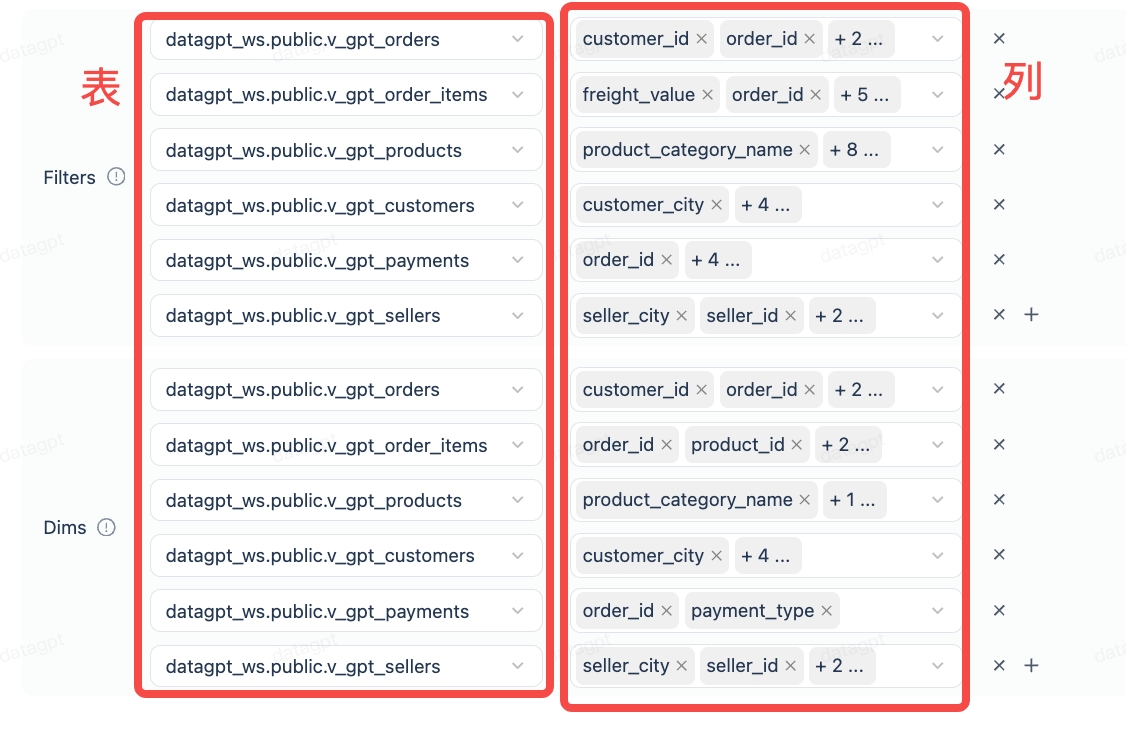
Configuring Filters and Dims
Below the SQL template, you need to define which columns can be used as filter conditions (Filters) and dimensions (Dims). Columns not selected here will not be used as filter conditions or dimensions for questions.
Problems Answer Builder Is Suited to Solve
Answer Builder is suited for locking in complex logic to avoid the model re-inferring it each time.
Typical scenarios include:
- Multi-table JOINs: combining orders, customers, products, payments, and other tables.
- Complex filters: count only valid orders, exclude test data, view only certain statuses.
- Detail queries: return order details, user lists, or anomaly records rather than a single aggregated number.
- Multi-metric combinations: returning revenue, order count, average value, and conversion rate in a single SQL statement.
- Fixed business definitions: questions with well-established definitions such as "showing-to-visit conversion rate", "player activity score", or "transaction details".
If a question is asked frequently and the SQL is complex, Answer Builder should be the first choice rather than relying on the AI to regenerate SQL each time.
Configuration Checklist
Before saving a metric or Answer Builder, it is recommended to check:
| Check Item | Metrics | Answer Builder |
|---|---|---|
| Is the name business-readable | Required | Required |
| Are aliases configured | Recommended | Recommended |
| Is the correct table bound | Required | Required |
| Does the aggregation function match the business definition | Required | Depends on SQL |
| Are filter conditions needed | Context-dependent | Required |
| Does it involve multi-table JOINs | Not applicable | Required |
| Has run validation been completed | Recommended | Required |
| Has it been added to the target analysis domain | Required | Required |
After configuration, return to the analysis domain and click Start Analysis, then validate with typical questions:
- Whether the system preferentially references the configured metrics or Answer Builder.
- Whether the returned SQL matches expectations.
- Whether dimension-based breakdowns and condition-based filters work correctly.
- Whether results are consistent with manual SQL or business definitions.
Related Documentation
- Configure Analysis Domain — The business context in which metrics and Answer Builder operate
- Answer Builder Best Practices — Design and validation methods for Answer Builder
- Analysis Domain Configuration Tips and FAQs — Lessons learned and FAQs from the configuration process
- Q&A Accuracy Improvement — The role of metrics and Answer Builder in the overall accuracy improvement strategy
- Data Source Management — Configure the data table sources that metrics depend on
- Conversational Data Analysis (Analytics Agent) — Feature overview